

WordPress Security Hardening: The Complete 2025 Checklist
March 23, 2026WooCommerce powers over 36% of all online stores worldwide, making it the undisputed leader in ecommerce platforms. But here is the uncomfortable truth that every store owner eventually confronts: WooCommerce is slow out of the box. Not because it is poorly built — it is actually an engineering marvel that transforms a blogging platform into a full ecommerce system — but because that transformation comes with architectural trade-offs that compound as your store grows.
I have spent years optimizing WooCommerce stores, and I have seen the same pattern repeatedly: a store launches fast, gains traction, adds products and plugins, and then grinds to a crawl right when speed matters most. A one-second delay in page load time reduces conversions by 7%. For a store doing $100,000 per month, that is $7,000 in lost revenue — every single month — from slowness alone.
This guide is not a surface-level list of “install a caching plugin” tips. We are going deep into the architecture of WooCommerce, examining exactly why it is slow, and applying targeted optimizations at every layer of the stack — from the server and database to the frontend and monitoring. Every recommendation here is backed by benchmark data, real-world testing, and the WooCommerce core team’s own performance research.
Let us turn your store into the fast, revenue-generating machine it should be.
Why WooCommerce Is Slow by Default
Before you optimize anything, you need to understand why WooCommerce struggles with performance. The root cause is not bad code — it is architectural constraints inherited from WordPress itself.
The wp_postmeta Problem. WordPress stores all content as “posts” in the wp_posts table, and every piece of metadata goes into wp_postmeta as key-value pairs. WooCommerce uses this system for products, orders, coupons, and subscriptions. A single product can generate 30-40 rows in wp_postmeta (price, stock, weight, dimensions, attributes, gallery IDs, and so on). A single order generates even more. On a store with 400,000 orders and 30,000 products, the wp_postmeta table balloons to over 2GB with 1.4 million rows. Every query touching orders or products must join against this massive table, which is indexed on meta_key — a column with terrible cardinality for ecommerce data.
No native caching awareness. WooCommerce serves dynamic, personalized content. Cart contents, pricing rules, user-specific discounts, stock levels, and session data all vary per visitor. Unlike a blog post that can be cached globally, a WooCommerce product page might show different prices to different customer roles, and the cart widget in the header must reflect the current session. This makes aggressive page caching dangerous without careful exclusion rules.
Cart fragments AJAX on every page. By default, WooCommerce fires an AJAX request (wc-ajax=get_refreshed_fragments) on every single page load to update the mini-cart widget. This request bypasses all page caches, hits PHP, queries the database, and returns cart HTML. On a site with 1,000 concurrent visitors, that is 1,000 uncached PHP executions — just for the cart icon in the header.
Plugin sprawl and hook overhead. The average WooCommerce store runs 30-50 active plugins. Each plugin hooks into WordPress actions and filters, adding processing time to every request. Payment gateways, shipping calculators, tax engines, analytics trackers — each adds database queries and PHP execution time that compound multiplicatively.
Understanding these root causes is critical because it tells you where to focus. Random optimizations waste time. Targeted ones transform performance.
Profiling Your Store First: Measure Before You Optimize
The cardinal rule of performance work is: never optimize blind. You need baseline measurements and diagnostic tools that reveal exactly where time is being spent. Two tools are essential for WooCommerce profiling.
Query Monitor: Your Server-Side Microscope
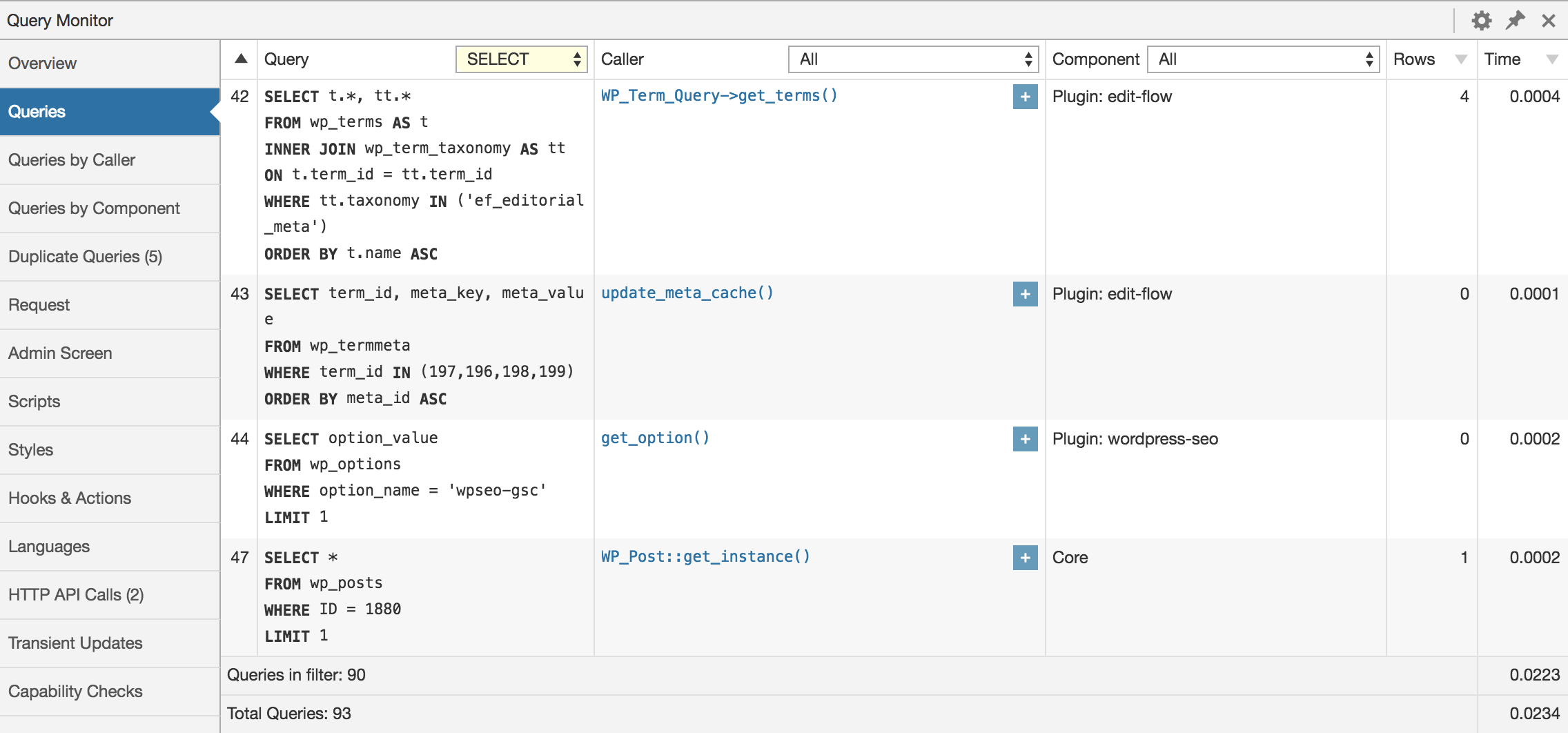
Query Monitor is a free WordPress plugin that exposes every database query, PHP error, HTTP API call, and hook execution on every page load. For WooCommerce optimization, it is indispensable. Install it, load your shop page, and look at the Queries panel. You will immediately see which plugins generate the most database queries, which queries are slowest, and whether any queries are duplicated.
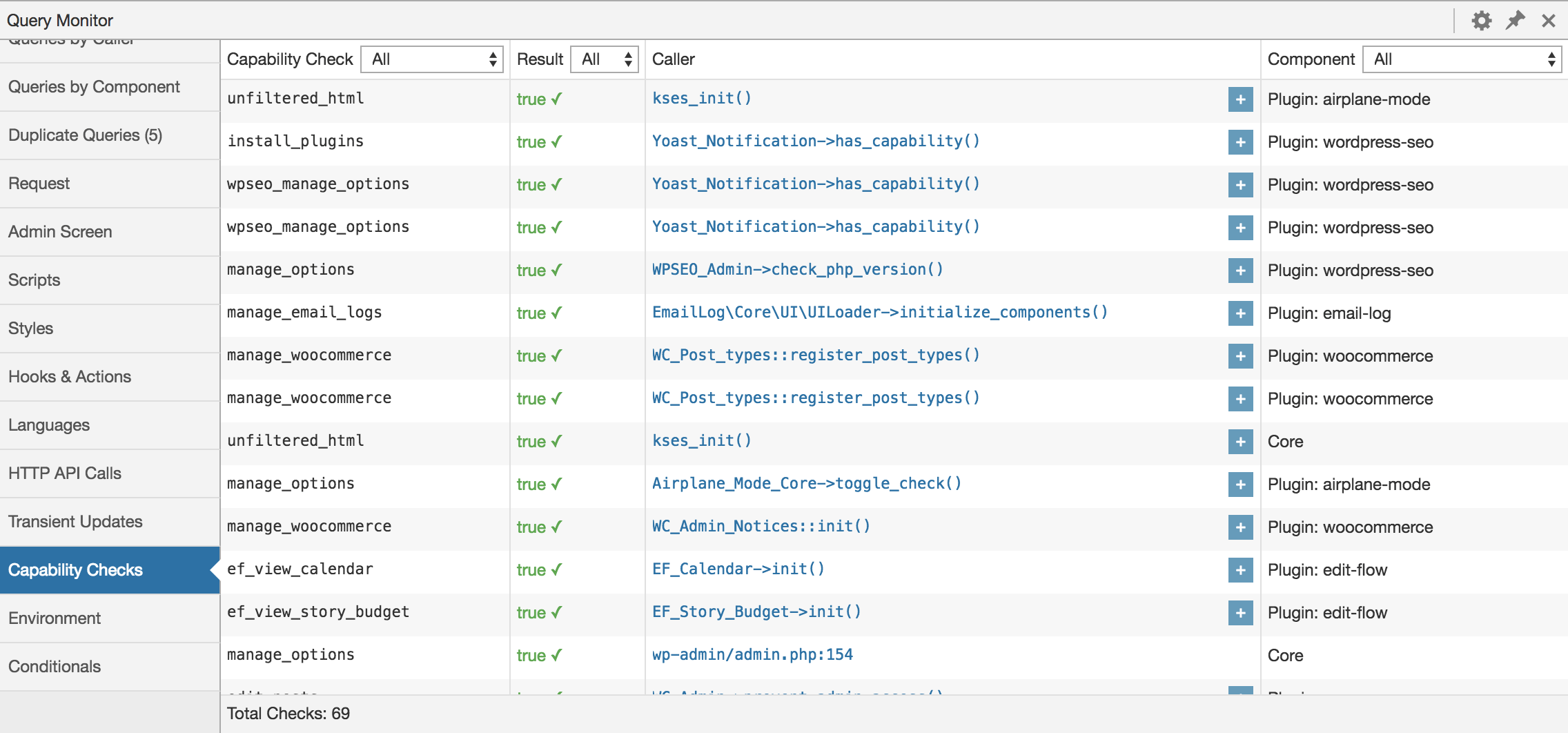
Pay special attention to queries that take longer than 0.05 seconds, and queries that run against wp_postmeta with joins. These are your primary targets. Query Monitor also shows the PHP caller for each query, so you can trace slow queries back to the exact plugin function responsible.
The Environment panel is equally valuable — it shows your PHP version, MySQL version, memory limits, and OPcache status at a glance.
Chrome DevTools: Your Frontend Diagnostic
Open Chrome DevTools (F12), go to the Network tab, and load your product pages. Sort by size and time. Look for oversized images, render-blocking scripts, and long TTFB (Time to First Byte). The Performance tab gives you a flame chart showing exactly what the browser is doing during page load — layout thrashing, long JavaScript tasks, and font loading delays all become visible.
Record baseline metrics for these key pages: homepage, shop/category page, single product page, cart, and checkout. These are your benchmarks against which you will measure every optimization.
Server-Level Optimizations
Server configuration is the foundation. No amount of plugin tuning can compensate for an underpowered or misconfigured server. Here are the critical server-level changes that directly impact WooCommerce performance.
PHP 8.2+ and OPcache Configuration
PHP 8.2 and 8.3 deliver measurable performance improvements over PHP 7.4 — the JIT compiler alone provides 10-20% faster execution for compute-heavy operations. But the bigger win is OPcache configuration. OPcache stores precompiled PHP bytecode in shared memory, eliminating the need to parse and compile PHP files on every request.
Most servers ship with conservative OPcache defaults that are inadequate for WooCommerce. Here is an optimized configuration:
; OPcache Configuration for WooCommerce
; Add to php.ini or a custom .ini file in conf.d/

opcache.enable=1
opcache.memory_consumption=256
opcache.interned_strings_buffer=16
opcache.max_accelerated_files=10000
opcache.revalidate_freq=60
opcache.validate_timestamps=1
opcache.save_comments=1
opcache.enable_file_override=1
opcache.jit=1255
opcache.jit_buffer_size=128M
The key settings: memory_consumption=256 gives OPcache enough room to store all of WooCommerce’s compiled files (WooCommerce alone has over 1,000 PHP files). max_accelerated_files=10000 accommodates WooCommerce plus plugins. revalidate_freq=60 means OPcache checks for file changes only once per minute in production, avoiding unnecessary stat() calls. The JIT settings enable the tracing JIT compiler, which further optimizes hot code paths.
MySQL/MariaDB Tuning for WooCommerce
WooCommerce is database-intensive. The default MySQL configuration is designed for general-purpose use and allocates far too little memory for the InnoDB buffer pool. This is the single most impactful MySQL setting for WooCommerce — it determines how much data MySQL can cache in RAM rather than reading from disk.
# MySQL/MariaDB Tuning for WooCommerce
# Add to my.cnf under [mysqld]

# InnoDB Buffer Pool — set to 70-80% of available RAM on dedicated DB server
innodb_buffer_pool_size = 2G

# InnoDB log file size — larger = better write performance, longer crash recovery
innodb_log_file_size = 256M
innodb_log_buffer_size = 16M

# Increase tmp table size for complex WooCommerce queries
tmp_table_size = 128M
max_heap_table_size = 128M

# Thread cache for connection reuse
thread_cache_size = 16

# Table open cache — WooCommerce uses many tables
table_open_cache = 4000

# Query cache — DISABLE on MySQL 8.0+ (deprecated and removed)
# On MySQL 5.7 or MariaDB, a small cache can help:
# query_cache_type = 1
# query_cache_size = 64M
# query_cache_limit = 2M

# Slow query log for ongoing monitoring
slow_query_log = 1
slow_query_log_file = /var/log/mysql/slow.log
long_query_time = 1
For a server with 4GB of RAM dedicated to MySQL, set innodb_buffer_pool_size to 2-3GB. The goal is to keep your entire InnoDB dataset in memory. You can check buffer pool efficiency with SHOW ENGINE INNODB STATUS — look at the buffer pool hit rate, which should be above 99%.
Enable the slow query log with long_query_time = 1 to catch any query taking more than one second. These are your optimization targets.
Memory Limits and Worker Processes
WooCommerce needs more PHP memory than a standard WordPress site. Cart calculations, tax lookups, shipping rate calculations, and product variation handling all consume significant memory. Set your limits appropriately in wp-config.php:
/** WooCommerce-Specific wp-config.php Constants */

// PHP memory limits
define('WP_MEMORY_LIMIT', '256M');
define('WP_MAX_MEMORY_LIMIT', '512M');

// Reduce post revisions to save database space
define('WP_POST_REVISIONS', 5);

// Increase autosave interval (seconds)
define('AUTOSAVE_INTERVAL', 120);

// Disable WP_CRON if using server-side cron
define('DISABLE_WP_CRON', true);

// Optimize database repairs
define('WP_ALLOW_REPAIR', false);
The DISABLE_WP_CRON setting is important for performance. WordPress’s built-in cron system triggers on page loads, meaning a visitor’s request has to wait for scheduled tasks to complete. Replace it with a real server-side cron job that runs every minute: */1 * * * * wget -q -O - https://yourstore.com/wp-cron.php?doing_wp_cron >/dev/null 2>&1
For PHP-FPM, size your worker pool based on available memory. Each PHP-FPM worker typically consumes 40-80MB for WooCommerce. With 4GB of RAM allocated to PHP, you can run approximately 50-80 workers. Use the pm = dynamic process manager with pm.max_children set to your calculated maximum.
Enable HPOS: The Single Biggest Database Win
High-Performance Order Storage (HPOS) is the most significant performance improvement WooCommerce has ever shipped. It moves order data from the generic wp_posts/wp_postmeta tables into purpose-built custom tables with proper indexing. If you make only one change from this entire guide, make it this one.
What HPOS Does and Why It Matters
HPOS creates dedicated tables (wp_wc_orders, wp_wc_orders_meta, wp_wc_order_addresses, etc.) that store order data in properly normalized, properly indexed columns. Instead of storing an order’s billing email as a key-value pair in wp_postmeta that requires a full table scan, HPOS stores it in a dedicated indexed column that MySQL can search instantly.
The WooCommerce core team published comprehensive benchmarks on a dataset of 400,000 orders and 30,000 products. The wp_postmeta table in this test had grown to 2GB with 1.4 million rows. The results are dramatic:
- Order creation (1,000 orders): HPOS completes in 15.18 seconds vs. 78.12 seconds with legacy posts storage — a 5x improvement
- Checkout (10 transactions): HPOS at 0.99 seconds vs. Posts at 1.51 seconds — 1.5x faster
- Metadata search: HPOS at 0.053 seconds vs. Posts at 0.639 seconds — over 10x faster
- Customer filtering: HPOS at 0.016 seconds vs. Posts at 0.599 seconds — nearly 40x faster

These are not theoretical numbers — they directly translate to faster checkout processing, faster admin order management, and faster analytics queries. For stores with large order volumes, the admin orders screen alone becomes usable again.
Migrating to HPOS
HPOS is now the default for new WooCommerce installations, but existing stores need to migrate. The safest approach uses WP-CLI:
# Step 1: Check current HPOS status
wp wc hpos status

# Step 2: Enable HPOS with synchronization (keeps both tables in sync)
wp option set woocommerce_custom_orders_table_enabled yes
wp option set woocommerce_custom_orders_table_data_sync_enabled yes

# Step 3: Run the migration
wp wc hpos sync --batch-size=500

# Step 4: Verify migration completed
wp wc hpos verify

# Step 5: Once verified, disable sync to reduce write overhead
wp option set woocommerce_custom_orders_table_data_sync_enabled no

# Step 6: Set HPOS as authoritative
wp option set woocommerce_orders_table_data_store_authoritative hpos
Run the sync during off-peak hours. On a store with 100,000 orders, the migration takes approximately 10-30 minutes depending on server resources. Keep data synchronization enabled for a week after migration so you can fall back if any plugin incompatibility surfaces.
HPOS Compatibility for Plugin Developers
If you develop WooCommerce extensions or custom code, you need to declare HPOS compatibility. Without this declaration, WooCommerce will warn store owners that your plugin may not be compatible:
/**
 * Declare HPOS compatibility for your WooCommerce extension.
 * Add this to your plugin's main file.
 */
add_action( 'before_woocommerce_init', function() {
    if ( class_exists( \Automattic\WooCommerce\Utilities\FeaturesUtil::class ) ) {
        \Automattic\WooCommerce\Utilities\FeaturesUtil::declare_compatibility(
            'custom_order_tables',
            __FILE__,
            true
        );
    }
});
Also ensure your code uses WooCommerce’s order CRUD methods ($order->get_billing_email()) rather than direct get_post_meta() calls. Direct postmeta calls will break with HPOS enabled.
Page Caching with WooCommerce Exclusions
Page caching is one of the most effective performance tools available — serving a static HTML file is 50-100x faster than executing PHP and querying the database. But WooCommerce’s dynamic nature makes page caching tricky. Get the exclusions wrong and you will serve cached cart contents to the wrong customers, or break checkout entirely.
Pages You Must Exclude from Cache
These pages contain session-specific or user-specific content and must never be served from a full-page cache:
- /cart/ — shows the current user’s cart contents
- /checkout/ — handles payment processing and must be dynamic
- /my-account/ — displays user-specific order history and details
- Any page with
[woocommerce_cart]or[woocommerce_checkout]shortcodes - WooCommerce AJAX endpoints —
/?wc-ajax=requests
If you are using Nginx as a reverse proxy, configure these exclusions at the server level for maximum reliability:
# Nginx FastCGI Cache Exclusions for WooCommerce
# Add to your Nginx server block

set $skip_cache 0;

# Do not cache WooCommerce pages
if ($request_uri ~* "/cart/|/checkout/|/my-account/|/addons/") {
    set $skip_cache 1;
}

# Do not cache WooCommerce AJAX
if ($arg_wc-ajax != "") {
    set $skip_cache 1;
}

# Do not cache when WooCommerce cookies are set
if ($http_cookie ~* "woocommerce_items_in_cart|woocommerce_cart_hash|wp_woocommerce_session") {
    set $skip_cache 1;
}

# Do not cache POST requests
if ($request_method = POST) {
    set $skip_cache 1;
}

# Apply to FastCGI cache
fastcgi_cache_bypass $skip_cache;
fastcgi_no_cache $skip_cache;
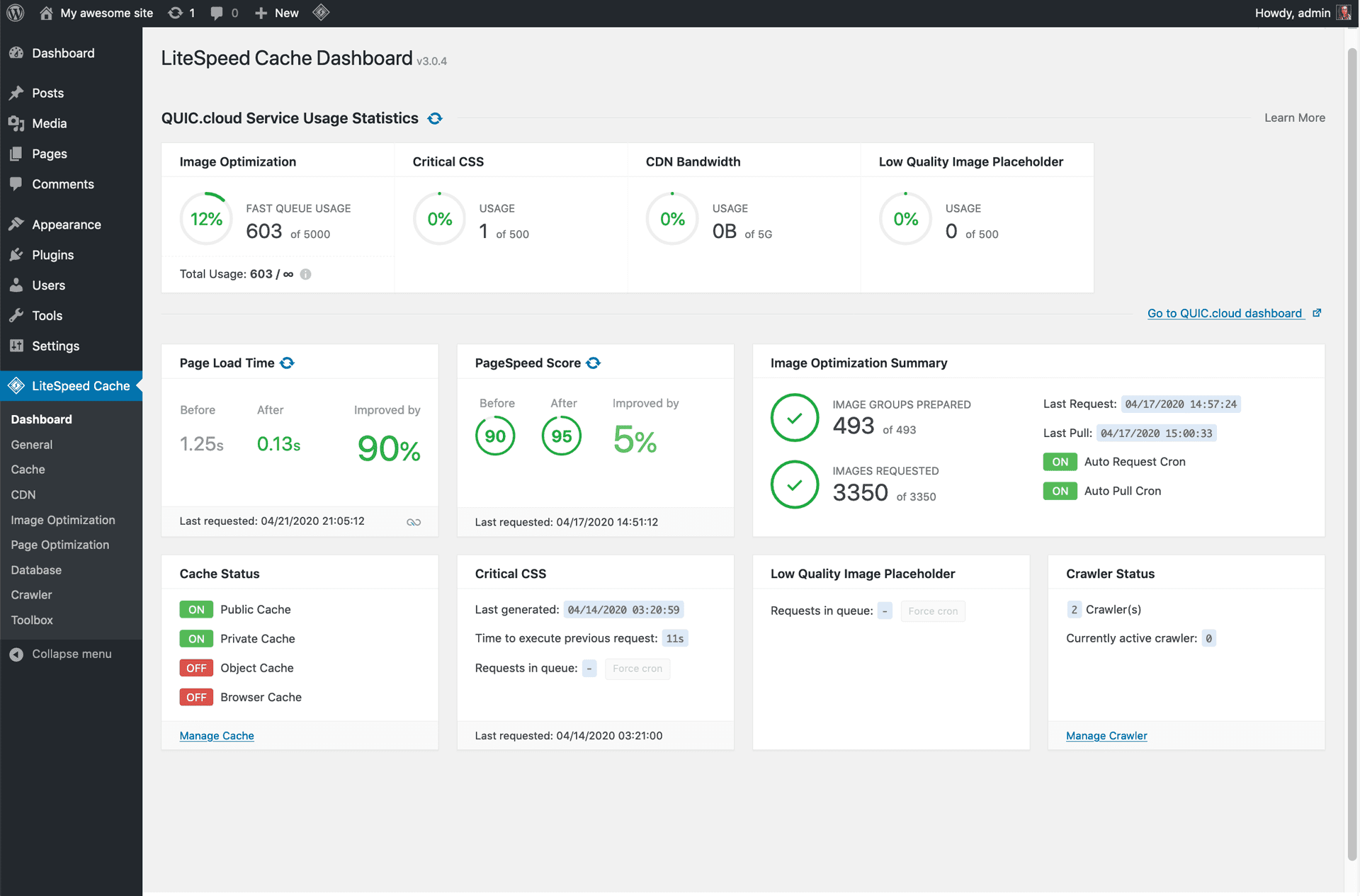
Most quality caching plugins handle these exclusions automatically. LiteSpeed Cache, for instance, detects WooCommerce and configures appropriate exclusions out of the box, including handling product variation caching that trips up less sophisticated solutions.
The Logged-In User Strategy
Most full-page caches bypass entirely for logged-in users. On a WooCommerce store where customers create accounts, this means your most valuable visitors — returning customers — get the slowest experience. There are two approaches to handle this:
Fragment caching: Cache the page shell and inject dynamic fragments (cart widget, user greeting) via AJAX or Edge Side Includes (ESI). LiteSpeed Cache supports ESI natively. This gives logged-in users near-cached performance while keeping personalized elements dynamic.
Private caching: Some CDNs (Cloudflare APO, LiteSpeed ADC) can serve per-user cached pages using Vary headers. This requires more cache storage but delivers full-page speed to logged-in users.
Object Caching with Redis
While page caching accelerates the full HTTP response, object caching accelerates the individual database queries and computed values within WordPress. Redis stores the results of expensive database queries in RAM, so subsequent requests for the same data are served from memory rather than hitting MySQL.
For WooCommerce, object caching is particularly impactful because the same data is queried repeatedly across page loads — product prices, tax rates, shipping zones, widget content, and plugin options. A properly configured Redis instance can reduce WooCommerce database queries by 50-80%.
Installation and Configuration
Install Redis on your server (most managed WordPress hosts pre-install it), then configure WordPress to use it as the object cache backend:
/** Redis Object Cache Configuration
 *  Add to wp-config.php, BEFORE the "That's all, stop editing!" line
 */

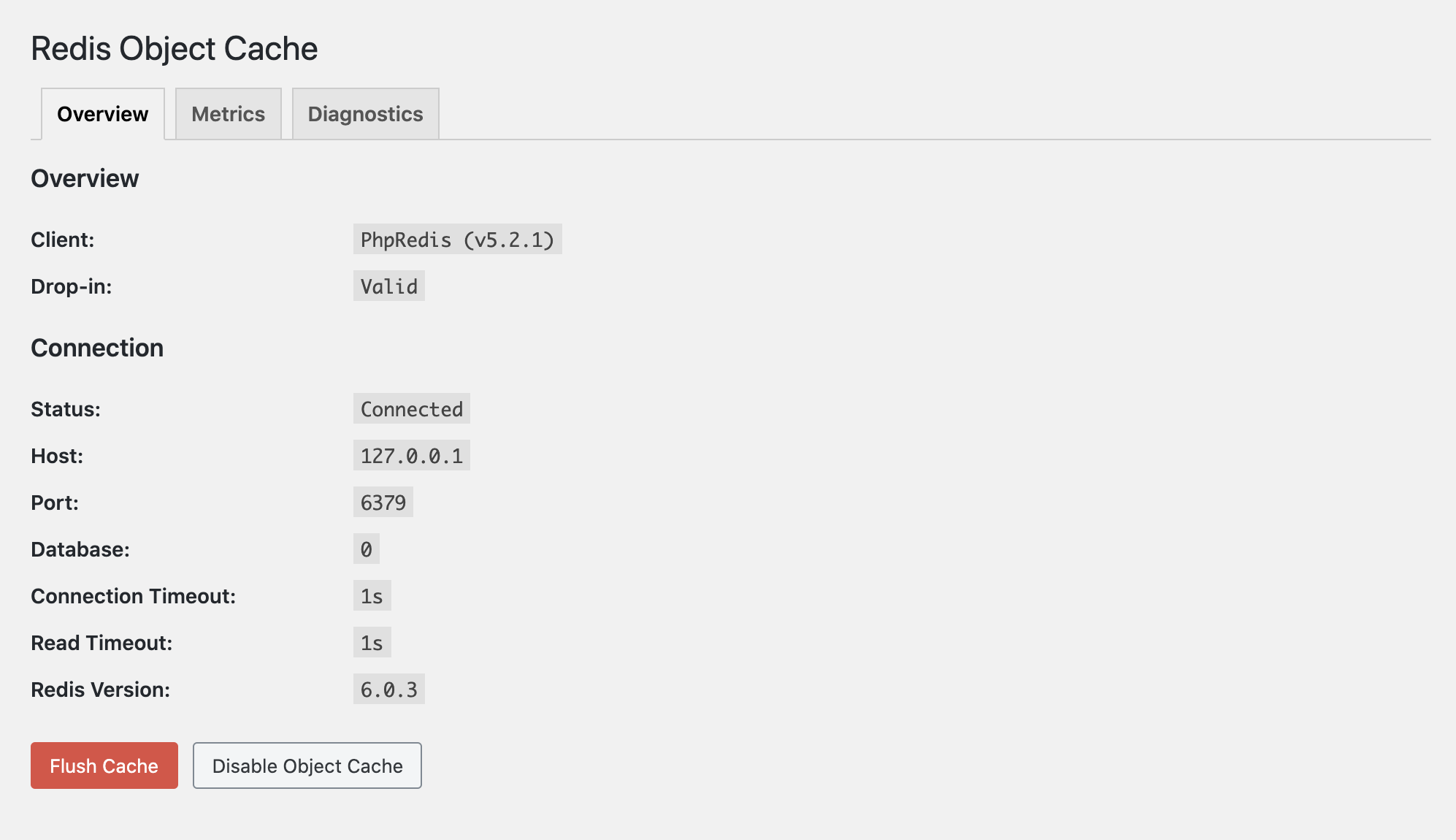
define('WP_REDIS_HOST', '127.0.0.1');
define('WP_REDIS_PORT', 6379);
define('WP_REDIS_DATABASE', 0);        // Use database 0 for this site
define('WP_REDIS_TIMEOUT', 1);          // Connection timeout in seconds
define('WP_REDIS_READ_TIMEOUT', 1);     // Read timeout in seconds

// Optional: Set a unique prefix if multiple sites share the same Redis instance
define('WP_REDIS_PREFIX', 'woo_');

// Optional: Disable Redis for specific cache groups that change too frequently
define('WP_REDIS_IGNORED_GROUPS', ['counts', 'plugins', 'themes']);
Then install the Redis Object Cache plugin, which provides a object-cache.php drop-in that integrates WordPress’s object cache with Redis. After activation, verify the connection in the plugin dashboard:
WooCommerce-Specific Redis Tuning
WooCommerce generates a lot of transients — temporary cached values for shipping rates, tax calculations, and session data. By default, WordPress stores transients in the database (wp_options table), which adds bloat and query overhead. With Redis active, transients are stored in memory instead, eliminating this database overhead entirely.
Set your Redis maxmemory policy to allkeys-lru (Least Recently Used eviction). This ensures Redis automatically removes the least-used cache entries when memory fills up, rather than returning errors. For a typical WooCommerce store, 256MB-512MB of Redis memory is sufficient. Configure this in /etc/redis/redis.conf:
# Redis configuration for WooCommerce
maxmemory 512mb
maxmemory-policy allkeys-lru
Monitor your Redis hit ratio — it should be above 90% for optimal performance. A low hit ratio means cache entries are being evicted too quickly (increase maxmemory) or too much uncacheable data is being stored (review your ignored groups).
Cart Fragments: The Silent Performance Killer
If there is one WooCommerce performance issue that catches store owners off guard, it is cart fragments. This single feature can undo all your caching work, and most store owners do not even know it exists.
What wc-ajax=get_refreshed_fragments Does
WooCommerce includes a JavaScript file (cart-fragments.js) that fires an AJAX request on every page load. This request hits /?wc-ajax=get_refreshed_fragments, which executes PHP to regenerate the mini-cart widget HTML. The purpose is to keep the cart icon in your header showing the correct item count, even when the page is served from cache.
The problem: this AJAX request bypasses your page cache entirely. It hits PHP, starts a WordPress session, queries the database for cart contents, runs all cart calculation hooks (including shipping and tax), renders the mini-cart template, and returns the HTML. On a well-optimized site with page caching, this single AJAX request can take longer than the entire cached page load.
Worse, it fires on every page — including your homepage, blog posts, about page, and contact page. Visitors browsing your blog are generating the same cart fragment overhead as visitors on your shop page.
How to Disable Cart Fragments on Non-Cart Pages
The most effective approach is to dequeue the cart fragments script on pages where the mini-cart does not need real-time updates. Add this to your theme’s functions.php or a custom plugin:
/**
 * Dequeue WooCommerce cart fragments on non-essential pages.
 * Cart fragments AJAX fires on every page load by default,
 * generating an uncached PHP request just to update the mini-cart.
 *
 * This restricts it to only cart, checkout, and shop pages
 * where real-time cart display is actually needed.
 */
add_action( 'wp_enqueue_scripts', 'optimize_woocommerce_cart_fragments', 999 );

function optimize_woocommerce_cart_fragments() {
    if (
        ! is_cart()
        && ! is_checkout()
        && ! is_product()
        && ! is_shop()
        && ! is_product_category()
        && ! is_product_tag()
    ) {
        wp_dequeue_script( 'wc-cart-fragments' );
    }
}
This keeps cart fragments active on shop-related pages where customers might add items to the cart, but disables it on blog posts, landing pages, and other non-commerce pages. The impact is immediate — you will see a significant reduction in admin-ajax.php and wc-ajax requests in your server logs.
For a more aggressive approach, you can disable cart fragments entirely and use a static cart link instead. Some themes offer this as a built-in option. The trade-off is that the cart icon will not show real-time item counts until the page is refreshed, which is an acceptable compromise for most stores given the performance gain.
Image Optimization for Product Pages
Product images are typically the largest assets on a WooCommerce page. A single unoptimized product photo can be 2-5MB, and a product page with a gallery of six images can easily load 15MB+ of image data. This is often the biggest contributor to slow Largest Contentful Paint (LCP) scores.
WebP and AVIF Conversion
WebP delivers 25-35% smaller files than JPEG at equivalent quality. AVIF goes further with 40-50% savings. Both formats are supported by all modern browsers. Use a plugin like ShortPixel, Imagify, or EWWW Image Optimizer to automatically convert your product images on upload.
The key is to serve the optimal format based on browser support using the <picture> element or content negotiation. Most image optimization plugins handle this automatically by serving WebP when the browser’s Accept header includes image/webp.
Responsive Images and Lazy Loading
WordPress generates multiple image sizes on upload. Make sure your theme uses the srcset attribute so browsers load appropriately sized images — a mobile visitor should not download a 2000px-wide product image when they only need 400px.
Lazy loading defers off-screen images until the user scrolls to them. WordPress includes native lazy loading via the loading="lazy" attribute since version 5.5. However, be strategic about it on product pages:
- Do NOT lazy-load the main product image — it is above the fold and is your LCP element. Lazy loading it delays LCP.
- DO lazy-load gallery thumbnails — they are below the fold or in a slider.
- DO lazy-load related product images — they are always below the fold.
- Add
fetchpriority="high"to the main product image to tell the browser to prioritize it.
Frontend Optimization
WooCommerce loads a significant amount of JavaScript and CSS — much of it on pages where it is not needed. A blog post does not need WooCommerce’s cart scripts, product gallery lightbox, or variation selectors. Cleaning up frontend asset loading can shave hundreds of milliseconds off non-shop pages.
Defer Render-Blocking JavaScript and CSS
Render-blocking resources prevent the browser from painting content until they are fully downloaded and parsed. WooCommerce adds several stylesheets and scripts to the document head that block rendering. Use a plugin like Perfmatters or Asset CleanUp to conditionally dequeue WooCommerce scripts on non-shop pages, or add the defer and async attributes to non-critical scripts.
For CSS, extract the critical CSS needed for above-the-fold content and inline it in the <head>, then load the full stylesheet asynchronously. Tools like CriticalCSS.com can generate this automatically, or use a plugin like WP Rocket or FlyingPress that handles it.
Minimize WooCommerce Scripts on Non-Shop Pages
WooCommerce loads its core JavaScript and CSS files globally. On a standard WooCommerce installation, these assets add 60-100KB of JavaScript and 20-30KB of CSS to every page. The WooCommerce 2025 roadmap already reduced the admin-side JavaScript by 73% (from 221KB to 60.2KB), but frontend optimization remains largely in the store owner’s hands.
You do not need woocommerce.min.js, cart-fragments.min.js, or woocommerce-layout.css on your blog posts or about page. Conditionally dequeue these assets on non-WooCommerce pages for a meaningful reduction in page weight and parse time.
Critical CSS Extraction
Generating per-page critical CSS for WooCommerce is more complex than for a static site because product pages vary in layout based on the product type (simple vs. variable vs. grouped). The most reliable approach is to generate critical CSS for each WooCommerce template type: shop archive, single product, cart, and checkout. Most modern performance plugins can automate this process.
Database Maintenance
WooCommerce stores create enormous amounts of temporary and transactional data that accumulates in the database over time. Without regular maintenance, this data bloats query execution times and increases backup sizes.
Clean Transients, Sessions, and Revisions
Transients are temporary cached values stored in the wp_options table (when no persistent object cache is active). WooCommerce creates transients for product queries, shipping rate calculations, and various API responses. Expired transients are not automatically cleaned up by WordPress — they accumulate until something explicitly deletes them.
WooCommerce sessions store cart contents and customer data for logged-out users. By default, sessions expire after 48 hours, but the session data and session metadata remain in the database until WordPress’s garbage collection runs (which depends on wp_cron).
-- Clean expired WooCommerce transients from wp_options
-- Run this periodically via phpMyAdmin or command line

DELETE FROM wp_options
WHERE option_name LIKE '_transient_timeout_wc_%'
AND option_value < UNIX_TIMESTAMP();

DELETE FROM wp_options
WHERE option_name LIKE '_transient_wc_%'
AND option_name NOT LIKE '_transient_timeout_wc_%'
AND option_name IN (
    SELECT REPLACE(option_name, '_transient_timeout', '_transient')
    FROM (
        SELECT option_name FROM wp_options
        WHERE option_name LIKE '_transient_timeout_wc_%'
        AND option_value < UNIX_TIMESTAMP()
    ) AS expired
);
For session cleanup, WP-CLI provides the cleanest approach:
# Clean expired WooCommerce sessions
wp wc tool run clear_expired_transients --user=1

# Delete all expired sessions from the database
wp db query "DELETE FROM wp_woocommerce_sessions WHERE session_expiry < UNIX_TIMESTAMP()"

# Clean post revisions older than 30 days
wp post delete $(wp post list --post_type=revision --format=ids --before="30 days ago") --force

# Optimize database tables after cleanup
wp db optimize
Optimize Autoloaded Options
WordPress loads all rows from wp_options where autoload = 'yes' into memory on every single request. Over time, plugins add options with autoload enabled that do not need to be loaded on every request. A bloated autoloaded options dataset (over 1MB) directly slows every page load.
Check your autoloaded data size with: SELECT SUM(LENGTH(option_value)) as autoload_size FROM wp_options WHERE autoload = 'yes';. If it exceeds 800KB, investigate which options are consuming the most space and set non-essential ones to autoload = 'no'.
WooCommerce-Specific Cleanup
WooCommerce generates additional data that needs periodic cleanup:
- WooCommerce logs — stored in
wp-content/wc-logs/, these can grow to gigabytes on busy stores. Set up log rotation or limit log retention to 30 days. - Action Scheduler tables — WooCommerce uses Action Scheduler for background tasks. Completed actions accumulate in
wp_actionscheduler_actionsandwp_actionscheduler_logs. WooCommerce cleans these up automatically, but on high-volume stores, manual cleanup may be needed. - Webhook delivery logs — if you use WooCommerce webhooks, delivery logs are stored indefinitely. Clean them periodically.
- API request logs — REST API authentication logs can accumulate. Prune logs older than 90 days.
Schedule database maintenance as a monthly task. The performance impact of a clean database compounds over time — a well-maintained database with proper indexes runs queries 2-5x faster than a bloated one.
Monitoring and Measuring Results
Performance optimization is not a one-time project — it is an ongoing practice. Without monitoring, you will not know when a plugin update, a traffic spike, or a new product import degrades performance. You also need to correlate performance changes with business metrics to justify the investment.
Core Web Vitals for Ecommerce
Google’s Core Web Vitals are the standard performance metrics that directly impact both SEO rankings and user experience. For WooCommerce stores, the targets are:
- Largest Contentful Paint (LCP) < 2.5s: This is typically your main product image. Optimize it with proper sizing, WebP format, fetchpriority=”high”, and preload hints.
- Interaction to Next Paint (INP) < 200ms: Product variation selectors, add-to-cart buttons, and filter widgets must respond quickly. Heavy JavaScript on product pages is the usual culprit for poor INP.
- Cumulative Layout Shift (CLS) < 0.1: Product images without explicit width/height, lazy-loaded content, and injected promotional banners cause layout shifts. Always define image dimensions and reserve space for dynamic content.
Use Google Search Console’s Core Web Vitals report to track field data (real user metrics) and PageSpeed Insights for lab data (synthetic tests). Track these metrics for your key page types separately — product pages, category pages, and checkout each have different performance profiles.
Conversion Rate Correlation
The ultimate measure of WooCommerce performance is not page speed — it is revenue. Track your conversion rate alongside performance metrics using WooCommerce’s built-in Analytics dashboard:
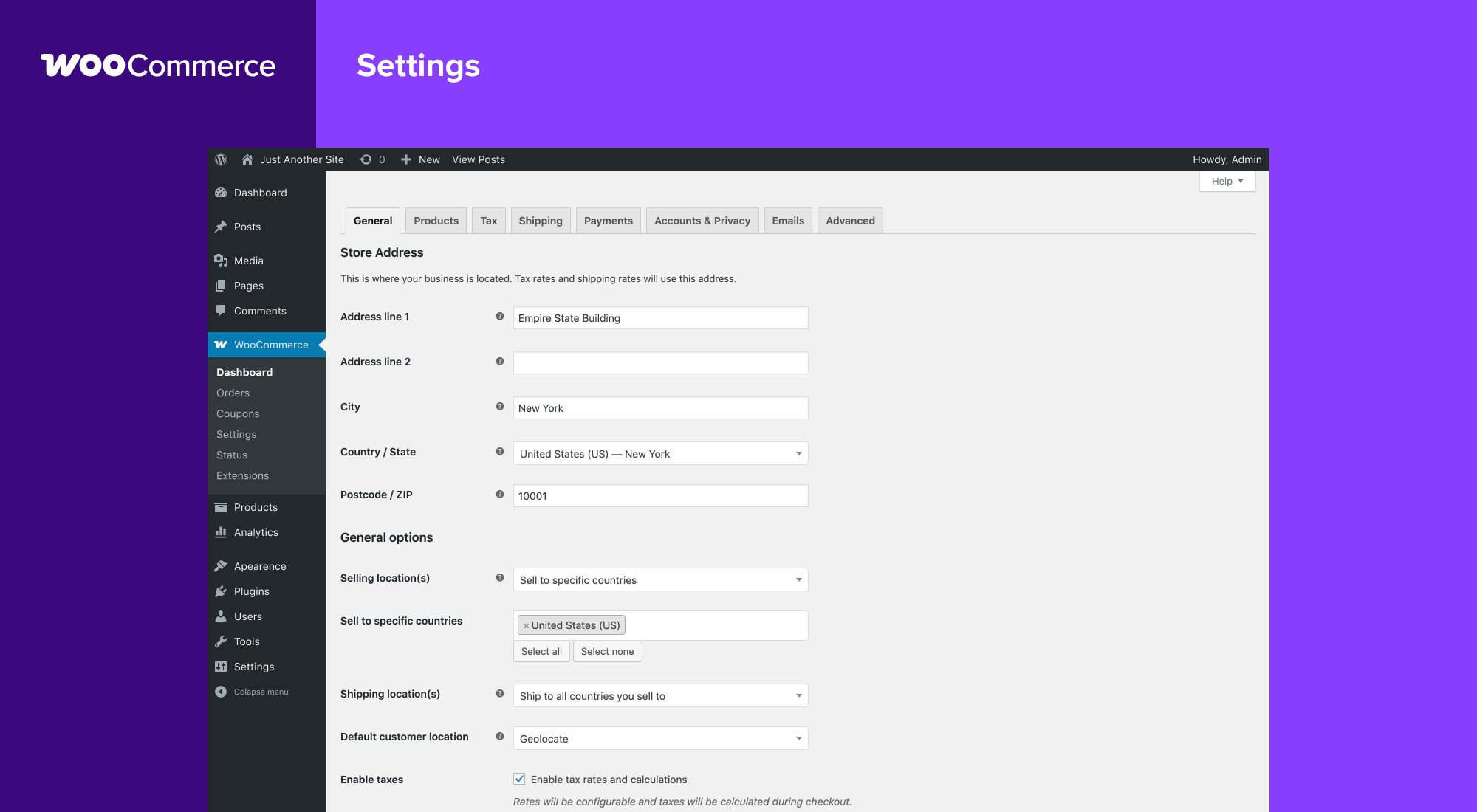
After implementing the optimizations in this guide, monitor your key business metrics for 2-4 weeks:
- Conversion rate — faster pages consistently correlate with higher conversion rates
- Cart abandonment rate — slow checkout is a primary driver of abandonment
- Pages per session — faster stores encourage more browsing
- Bounce rate on product pages — high bounce + slow LCP = visitors leaving before the page loads
- Server resource usage — CPU and memory should decrease as caching takes effect
The WooCommerce 2025 roadmap demonstrated that targeted performance work delivers real results: the admin load time was reduced by 51.9% across the top 10 slowest admin requests, and total resources loaded were cut by 26%. Apply the same rigor to your frontend and you will see proportional business impact.
Conclusion
WooCommerce performance optimization is a layered discipline. There is no single magic bullet — each optimization in this guide addresses a specific bottleneck in the stack, and their effects are cumulative. Let me summarize the priority order based on impact:
- Enable HPOS — the single biggest database performance win, with up to 40x improvement in order queries
- Implement page caching with proper WooCommerce exclusions — 50-100x faster response times for cacheable pages
- Add Redis object caching — 50-80% reduction in database queries
- Disable cart fragments on non-shop pages — eliminates the most common source of cache bypass
- Optimize server configuration — PHP 8.2+, OPcache tuning, MySQL buffer pool sizing
- Image optimization — WebP/AVIF conversion and lazy loading
- Frontend asset optimization — defer, dequeue, and minimize unnecessary scripts/styles
- Regular database maintenance — clean transients, sessions, and optimize tables
Start with profiling (Query Monitor and Chrome DevTools), implement changes methodically, measure the impact of each change, and maintain your optimizations over time. A fast WooCommerce store is not just a technical achievement — it is a revenue multiplier. Every millisecond you shave from page load time translates directly to more conversions, higher customer satisfaction, and better search engine rankings.
Performance is not a destination. It is a practice. Build it into your store management workflow, and your WooCommerce store will consistently outperform competitors who treat speed as an afterthought.
References
- WooCommerce Developer Blog — “High Performance Order Storage: Performance Benchmarks” (developer.woocommerce.com)
- WooCommerce 2025 Performance Roadmap — Admin Performance Improvements (developer.woocommerce.com)
- WordPress.org — Query Monitor Plugin Documentation (wordpress.org/plugins/query-monitor)
- WordPress.org — Redis Object Cache Plugin (wordpress.org/plugins/redis-cache)
- WordPress.org — LiteSpeed Cache Plugin (wordpress.org/plugins/litespeed-cache)
- Google Web Developers — Core Web Vitals (web.dev/vitals)
- MySQL Reference Manual — InnoDB Buffer Pool Configuration (dev.mysql.com)
- PHP.net — OPcache Configuration Directives (php.net/manual/en/opcache.configuration.php)
- WooCommerce Documentation — HPOS Compatibility and Migration Guide (woocommerce.com/document/high-performance-order-storage)
- Nginx Documentation — FastCGI Caching Configuration (nginx.org/en/docs/http/ngx_http_fastcgi_module.html)
