
How to Fix the WordPress White Screen of Death (8 Proven Solutions)
March 19, 2026
How to Reduce Time to First Byte (TTFB) in WordPress: 10 Expert Optimization Strategies
March 22, 2026
Few WordPress errors are as frustrating as the dreaded 404 “Page Not Found” error appearing on posts that you know exist. You can see them in your dashboard, they’re published, and yet when you—or worse, your visitors—try to access them, the server returns a blank 404 page. Your homepage loads fine, your admin dashboard works perfectly, but individual posts and pages are completely inaccessible. This scenario is alarmingly common in the WordPress ecosystem, and understanding why it happens is the first step toward a permanent fix.
Over the past fifteen years of managing WordPress sites across diverse hosting environments—from basic shared hosting to complex multi-site VPS configurations running OpenLiteSpeed and Nginx—I have encountered this error hundreds of times. The root cause almost always traces back to the same fundamental issue: a breakdown in the URL rewriting mechanism that WordPress depends on to generate clean, SEO-friendly permalinks. This comprehensive guide will walk you through every possible cause and solution, from the simplest one-click fix to advanced server-level debugging. By the end, you’ll not only fix the immediate problem but understand the underlying architecture well enough to prevent it from ever recurring.
Understanding How WordPress Permalinks Work Under the Hood
Before diving into fixes, it is essential to understand the mechanism behind WordPress permalinks and why they are so prone to breaking. When WordPress was first created, URLs looked like https://example.com/?p=123—a query string pointing directly to a post ID. While functional, these “ugly” URLs were terrible for SEO and user experience. The permalink system was introduced to transform these into clean, readable URLs like https://example.com/my-awesome-post/.
This transformation relies on URL rewriting—a server-level feature that intercepts incoming requests and routes them through WordPress’s internal routing system. On Apache servers, this is handled by mod_rewrite rules stored in the .htaccess file. On Nginx, equivalent rules are defined in the server configuration block. On LiteSpeed and OpenLiteSpeed, the system processes .htaccess rules natively but with its own rewrite engine. When any part of this chain breaks—the rewrite module is disabled, the rules file is corrupted, or WordPress’s internal rewrite registry becomes desynchronized—the result is a 404 error on every post and page while the homepage (which doesn’t rely on rewriting) continues to work normally.
Common Causes of WordPress Posts Returning 404 Errors
Understanding the root cause is crucial for applying the right fix. In my experience, these causes are ranked by frequency of occurrence:
- Corrupted or missing rewrite rules — The internal WordPress rewrite registry has become desynchronized from the server’s rewrite rules file. This is the single most common cause, accounting for roughly 60% of all WordPress 404 issues I encounter.
- Missing or corrupted .htaccess file — On Apache and LiteSpeed servers, the
.htaccessfile contains the rewrite rules WordPress needs. If this file is missing, empty, contains syntax errors, or has incorrect permissions, all permalink-based URLs will fail. - Plugin or theme conflicts — Security plugins (Wordfence, Sucuri), caching plugins (W3 Total Cache, WP Super Cache), and SEO plugins (Yoast, Rank Math) all interact with WordPress’s rewrite system. A faulty update or configuration change can corrupt the rewrite rules.
- Server module not enabled — On Apache,
mod_rewritemust be enabled. On local development environments (XAMPP, MAMP, WAMP), it is often disabled by default. - Incorrect AllowOverride directive — Even with
mod_rewriteenabled, Apache must be configured to allow.htaccessoverrides in your WordPress directory. TheAllowOverride Nonedirective—common in default Apache configurations—silently prevents all rewrite rules from functioning. - Hosting-level restrictions — ModSecurity rules, hosting-level firewalls, and custom server configurations can interfere with permalink routing. This is particularly common on shared hosting where the provider has applied restrictive security policies.
- WordPress migration issues — After moving a site to a new host, changing domains, or converting from HTTP to HTTPS, the rewrite rules and database URLs may not be updated consistently, leading to 404 errors across the site.
Method 1: Flush the WordPress Rewrite Rules (The 30-Second Fix)
This is the first thing you should try, and it resolves the problem in the majority of cases. WordPress maintains an internal registry of rewrite rules in the database. When this registry becomes out of sync with the actual server rules, flushing forces WordPress to regenerate everything from scratch.
The process is remarkably simple:
- Navigate to Settings → Permalinks in your WordPress admin dashboard.
- Do not change any settings—simply scroll to the bottom and click “Save Changes.”
- WordPress will regenerate its internal rewrite rules and rewrite the
.htaccessfile (on Apache/LiteSpeed servers). - Visit one of the affected posts to verify the fix.
What happens behind the scenes when you click “Save Changes” is quite elegant. WordPress calls the flush_rewrite_rules() function, which deletes the rewrite_rules option from the wp_options table, regenerates all rules from registered post types, taxonomies, and custom rewrite rules added by plugins, serializes them back into the database, and writes the corresponding server-level rules to .htaccess. This comprehensive regeneration process fixes most desynchronization issues in one step.
If You Cannot Access the WordPress Admin Dashboard
If your admin dashboard is also affected (some permalink configurations can cause this), you have two alternatives. If you have SSH access to your server and WP-CLI installed, you can flush rewrite rules from the command line:
wp rewrite flush
wp rewrite list  # Verify the rules were regenerated
Alternatively, you can add a temporary line to your theme’s functions.php file via FTP or file manager:
// Add this line temporarily — remove after one page load
flush_rewrite_rules();
Critical note: Remove this line immediately after loading one page. Leaving flush_rewrite_rules() in your code permanently causes WordPress to regenerate all rewrite rules on every single page load, which is extremely resource-intensive and will significantly degrade your site’s performance.
Method 2: Repair or Recreate the .htaccess File
If flushing rewrite rules didn’t resolve the issue, the .htaccess file itself is likely the problem. This file sits in the root directory of your WordPress installation and contains the rewrite rules that Apache and LiteSpeed use to translate clean permalink URLs into WordPress’s internal query format.
Connect to your server via FTP (FileZilla, WinSCP), SFTP, or your hosting control panel’s file manager. Navigate to your WordPress root directory (the same folder that contains wp-config.php, wp-content/, and wp-includes/) and locate the .htaccess file.
There are several scenarios you might encounter:
Scenario A: The .htaccess File Is Missing
If there is no .htaccess file at all, WordPress cannot communicate its rewrite rules to the server. Create a new file named .htaccess (note the leading dot) and add the standard WordPress rewrite rules:
# BEGIN WordPress
<IfModule mod_rewrite.c>
RewriteEngine On
RewriteRule .* - [E=HTTP_AUTHORIZATION:%{HTTP:Authorization}]
RewriteBase /
RewriteRule ^index\.php$ - [L]
RewriteCond %{REQUEST_FILENAME} !-f
RewriteCond %{REQUEST_FILENAME} !-d
RewriteRule . /index.php [L]
</IfModule>
# END WordPress
If WordPress is installed in a subdirectory (e.g., https://example.com/blog/), change RewriteBase / to RewriteBase /blog/ accordingly.
Scenario B: The .htaccess File Exists but Is Corrupted
Open the file and examine its contents. Common corruption patterns include:
- Duplicate WordPress blocks — Multiple
# BEGIN WordPress/# END WordPresssections, sometimes with conflicting rules - Plugin-injected rules with syntax errors — Security and caching plugins often add their own rules above or below the WordPress block. A syntax error in any rule can break the entire file
- Empty file — The file exists but contains no content, usually because WordPress couldn’t write to it due to permissions
- Malware injection — Hacked sites often have malicious redirect rules injected into .htaccess, which can cause various routing problems including 404 errors
The safest approach is to rename the existing file to .htaccess.backup, create a fresh .htaccess with the standard WordPress rules above, then go to Settings → Permalinks and click Save Changes to let WordPress regenerate its rules properly.
Scenario C: The .htaccess File Has Incorrect Permissions
The .htaccess file needs specific permissions to function correctly. It must be readable by the web server process (Apache, LiteSpeed) and ideally writable by WordPress for automatic updates. The recommended permissions are:
644— Owner can read/write, group and world can read. This is the standard secure setting.666— Temporarily needed if WordPress cannot write to the file. Change back to 644 immediately after WordPress updates it.
# Set correct permissions
chmod 644 .htaccess

# Verify
ls -la .htaccess
# Should show: -rw-r--r-- 1 www www ... .htaccess
Never use 777 permissions on any file in your WordPress installation. This grants read, write, and execute access to every user on the server—a critical security vulnerability on shared hosting where other accounts could modify your files.
Method 3: Check for Plugin and Theme Conflicts
Plugins that interact with WordPress’s URL routing system are frequent culprits behind 404 errors. In particular, I have seen this issue caused by security plugins that add firewall rules to .htaccess, caching plugins that create their own rewrite rules for serving cached pages, SEO plugins with redirect managers that can create routing conflicts, and custom post type plugins that register rewrite rules which conflict with existing ones.
To diagnose a plugin conflict, the most reliable method is to deactivate all plugins simultaneously and check if the 404 errors resolve. You can do this from the WordPress admin under Plugins → Installed Plugins → Select All → Deactivate. If you cannot access the admin, rename the plugins directory via FTP:
# Rename plugins directory to deactivate all plugins
mv wp-content/plugins wp-content/plugins_disabled

# Visit your site — if 404 errors are gone, a plugin is the cause

# Rename back
mv wp-content/plugins_disabled wp-content/plugins
If deactivating all plugins fixes the issue, reactivate them one at a time, checking for 404 errors after each activation. The plugin that brings back the error is your culprit. Common resolutions include updating the plugin to the latest version, checking the plugin’s settings for any URL or redirect configurations that might conflict with your permalink structure, or contacting the plugin developer with the specific error details.
The same diagnostic approach applies to themes. Switch to a default WordPress theme (Twenty Twenty-Four or Twenty Twenty-Five) temporarily. If the 404 errors disappear, your theme’s functions.php or template files contain code that interferes with URL routing.
Method 4: Enable and Configure mod_rewrite on Apache
If you are running WordPress on an Apache web server—whether on a VPS, dedicated server, or local development environment like XAMPP, MAMP, or WAMP—the Apache mod_rewrite module must be explicitly enabled for permalinks to function. This module is responsible for processing the rewrite rules in your .htaccess file.
On Ubuntu/Debian Linux Servers
# Check if mod_rewrite is already enabled
apache2ctl -M | grep rewrite

# If no output, enable it
sudo a2enmod rewrite

# Restart Apache to apply changes
sudo systemctl restart apache2
On CentOS/RHEL/AlmaLinux Servers
# mod_rewrite is typically enabled by default on CentOS
# Verify with:
httpd -M | grep rewrite

# If not loaded, add to httpd.conf:
# LoadModule rewrite_module modules/mod_rewrite.so
sudo systemctl restart httpd
The AllowOverride Directive — The Hidden Requirement
Even with mod_rewrite enabled, Apache must be configured to actually process .htaccess files. This is controlled by the AllowOverride directive in your Apache virtual host configuration. Many default Apache installations and hosting control panels set this to None, which completely ignores all .htaccess rules.
Open your Apache site configuration (typically /etc/apache2/sites-available/000-default.conf or /etc/apache2/sites-available/yourdomain.conf) and locate or add the following within your <VirtualHost> block:
<Directory /var/www/html>
    AllowOverride All
    Require all granted
</Directory>
Change /var/www/html to match your actual WordPress installation path. After making this change, restart Apache:
sudo systemctl restart apache2On Local Development (XAMPP)
XAMPP often has mod_rewrite disabled by default. Open C:\xampp\apache\conf\httpd.conf, find the line #LoadModule rewrite_module modules/mod_rewrite.so, and remove the # to uncomment it. Also search for AllowOverride None and change it to AllowOverride All. Restart Apache through the XAMPP control panel.
Method 5: Configure URL Rewriting for Nginx Servers
Nginx does not use .htaccess files at all. If your WordPress site runs on Nginx (including managed hosting platforms like Kinsta, GridPane, or SpinupWP), permalink rewriting must be configured directly in the Nginx server block. Without the correct try_files directive, Nginx has no idea how to route clean permalink URLs to WordPress’s index.php handler.
Open your Nginx site configuration (typically /etc/nginx/sites-available/yourdomain or /etc/nginx/conf.d/yourdomain.conf) and ensure the following location block exists within your server block:
server {
    listen 80;
    server_name yourdomain.com;
    root /var/www/html;
    index index.php;

    location / {
        try_files $uri $uri/ /index.php?$args;
    }

    location ~ \.php$ {
        include snippets/fastcgi-php.conf;
        fastcgi_pass unix:/run/php/php8.2-fpm.sock;
    }
}
The critical line is try_files $uri $uri/ /index.php?$args;. This tells Nginx to first check if the requested URL matches an actual file on disk, then a directory, and if neither exists, pass the request to index.php with the original query arguments—which is exactly how WordPress processes permalink URLs.
After modifying the configuration, test and reload:
# Test configuration syntax
sudo nginx -t

# If test passes, reload (not restart — reload is zero-downtime)
sudo systemctl reload nginx
Method 6: Fix WordPress Permalink Issues After Migration
Site migrations are a particularly common trigger for 404 errors because multiple things change simultaneously: the server environment, the domain name, the directory structure, and sometimes the database prefix. Each of these changes can break permalink routing in different ways.
Verify Site URL and Home URL
After migration, confirm that WordPress knows its correct address. Go to Settings → General and verify both the WordPress Address (URL) and Site Address (URL) are correct. They should match your new domain and use the correct protocol (http vs https).
If you cannot access the admin, set these values directly in wp-config.php:
define('WP_HOME', 'https://yournewdomain.com');
define('WP_SITEURL', 'https://yournewdomain.com');
Update Database URLs
Your database contains thousands of hardcoded URLs — in post content, widget text, theme settings, and plugin configurations. After changing domains, these need to be updated. The most reliable tool for this is WP-CLI’s search-replace command:
# Preview changes (dry run — no modifications made)
wp search-replace 'https://olddomain.com' 'https://newdomain.com' --all-tables --dry-run

# Execute the replacement
wp search-replace 'https://olddomain.com' 'https://newdomain.com' --all-tables

# Flush rewrite rules after URL changes
wp rewrite flush
If you do not have WP-CLI access, install the Better Search Replace plugin, which provides a user-friendly interface for the same operation. Always run a dry run first to verify the number and location of replacements before executing.
Method 7: Advanced Debugging — When Standard Fixes Fail
If you have worked through all six methods above and the 404 errors persist, the issue lies in a less obvious area. Here are advanced debugging techniques that have helped me resolve the most stubborn cases.
Check ModSecurity Rules
ModSecurity is a web application firewall (WAF) installed on many shared hosting environments. Its rules can sometimes block legitimate WordPress requests, causing 404 or 403 errors. If your hosting control panel (cPanel, Plesk, DirectAdmin) has a ModSecurity section, try temporarily disabling it to see if the 404 errors resolve. If they do, you will need to work with your hosting provider to whitelist the specific rules that are interfering with WordPress.
Inspect WordPress Rewrite Rules Directly
You can examine the exact rewrite rules WordPress has stored in the database using WP-CLI or a database query:
# List all registered rewrite rules
wp rewrite list --format=table

# Check for specific post type rules
wp rewrite list --match="post" --format=table
If the rewrite rules list is empty or missing expected entries, a plugin or theme is likely calling flush_rewrite_rules() at the wrong time or failing to register its post types correctly during the init hook.
Use Google Search Console to Find 404 Errors at Scale
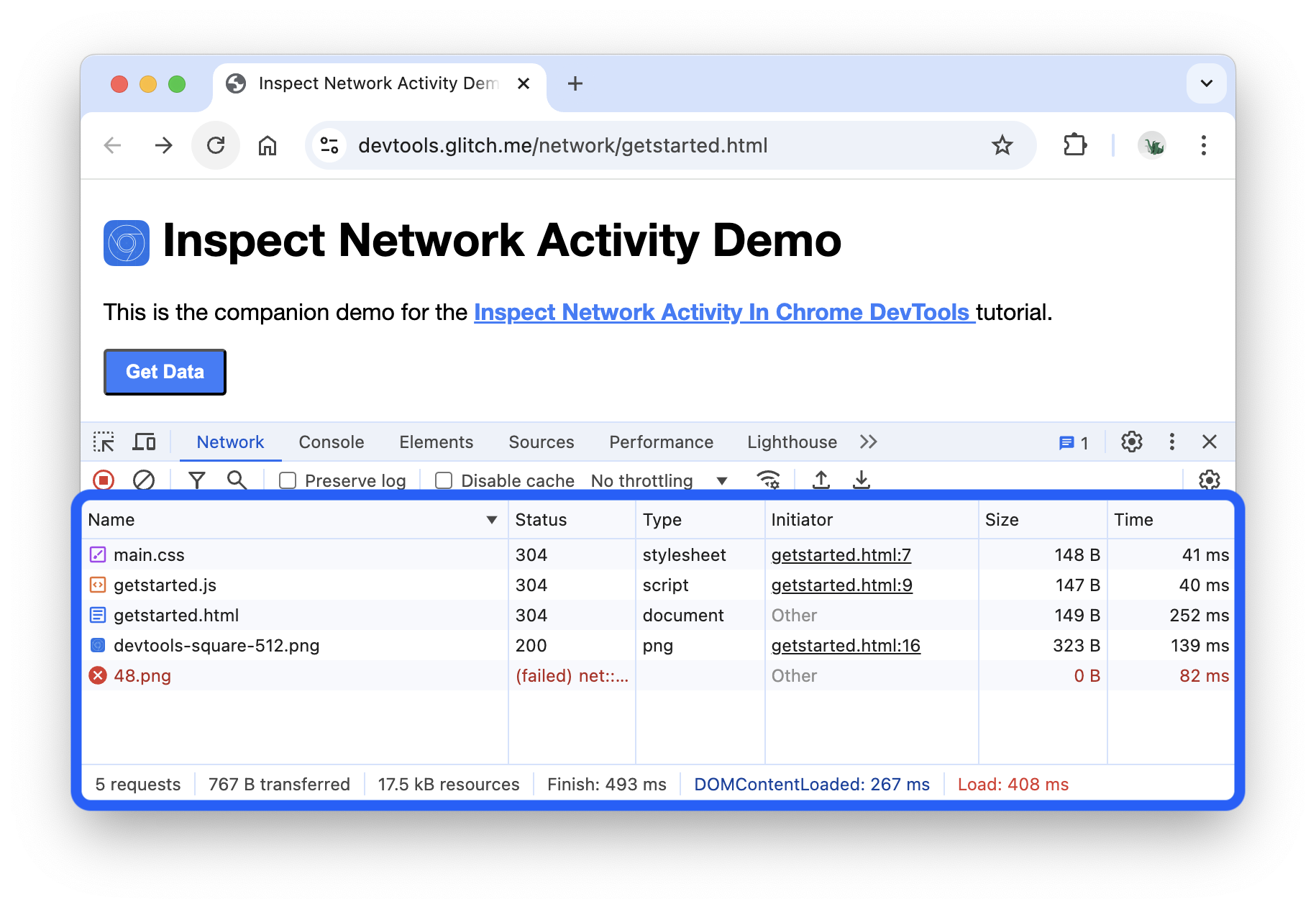
If you are unsure which URLs are affected, Google Search Console provides a comprehensive view. Navigate to Pages → Not Indexed and look for URLs with the reason “Not found (404).” This shows you every URL that Googlebot attempted to crawl but received a 404 response—including URLs you might not have discovered through manual testing.
Check for Custom Post Type Registration Issues
If the 404 errors only affect custom post types (portfolios, events, products) and not regular posts or pages, the issue is likely in how the custom post type is registered. The register_post_type() function must be called during the init hook, and the rewrite parameter must be configured correctly:
add_action('init', function() {
    register_post_type('portfolio', [
        'public' => true,
        'has_archive' => true,
        'rewrite' => ['slug' => 'portfolio', 'with_front' => false],
        'supports' => ['title', 'editor', 'thumbnail'],
    ]);
});
// After registering or changing rewrite slugs, flush rewrite rules ONCE
Prevention: Ensuring WordPress 404 Errors Never Return
Once you have resolved the immediate issue, implement these preventive measures to ensure the problem does not recur:
- Back up your .htaccess file — Before installing or updating plugins that modify rewrite rules (security plugins, caching plugins, SEO plugins), create a backup copy of your
.htaccessfile. If an update breaks something, you can instantly restore the working version. - Test updates on staging first — Many managed WordPress hosts offer one-click staging environments. Use them to test plugin and theme updates before applying them to your live site. A 404 error discovered on staging costs you nothing; the same error on your live site costs you visitors, revenue, and SEO rankings.
- Monitor with uptime monitoring — Services like UptimeRobot, Hetrixtools, or Pingdom can monitor specific URLs on your site and alert you immediately if they start returning 404 errors. Configure monitoring for your most important pages and a selection of representative posts.
- Set up proper redirects when changing permalink structures — If you ever need to change your permalink structure on a live site, use a redirection plugin (Rank Math includes a built-in redirect manager, or use the standalone Redirection plugin) to create 301 redirects from old URLs to new ones. This preserves both user bookmarks and SEO link equity.
- Keep WordPress, plugins, and themes updated — Compatibility issues between outdated components are a frequent cause of rewrite rule conflicts. Regular updates minimize these risks.
Conclusion: A Systematic Approach to WordPress 404 Errors
The WordPress 404 error on posts is fundamentally a URL rewriting problem. The fix follows a logical progression: start with the simplest solution (flushing rewrite rules via Settings → Permalinks), then check the .htaccess file, test for plugin conflicts, verify server module configuration, and finally investigate advanced causes like ModSecurity rules or custom post type registration issues.
In my experience, the vast majority of cases—easily 80% or more—are resolved by Method 1 or Method 2. The remaining 20% typically involve server-level configuration issues that require access to Apache or Nginx configuration files. The key is approaching the problem systematically rather than randomly trying fixes, which can create additional complications.
Remember that prevention is always more efficient than troubleshooting. A regular maintenance routine that includes monitoring, backing up critical configuration files, and testing updates on staging will save you from encountering this error repeatedly. Your visitors, your SEO rankings, and your peace of mind will all benefit from a site where every URL resolves correctly, every time.
References
The information and strategies discussed in this guide are based on publicly available documentation and expert resources, including:
- WordPress Developer Resources — Advanced Administration: Server Configuration and Rewrite Rules
- WPBeginner — How to Fix WordPress Posts Returning 404 Error (wpbeginner.com)
- Apache HTTP Server Documentation — mod_rewrite Module
- Nginx Documentation — try_files Directive and WordPress Configuration
- Chrome DevTools Documentation — Network Panel Reference (developer.chrome.com)