
The Ultimate Guide to Core Web Vitals in 2025
May 11, 2025
How to Fix the WordPress White Screen of Death (8 Proven Solutions)
March 19, 2026
You open your WordPress site and instead of your beautiful homepage, you see a stark white page with one devastating message: “Error establishing a database connection.” Your heart sinks. Your entire site — every page, every post, your admin dashboard — is completely down.
I’ve dealt with this error hundreds of times across client sites over the past 15 years. The good news? It’s almost always fixable, and in most cases, you can resolve it in under 30 minutes without any specialized tools. In this guide, I’ll walk you through every proven solution, starting with the most common fix.
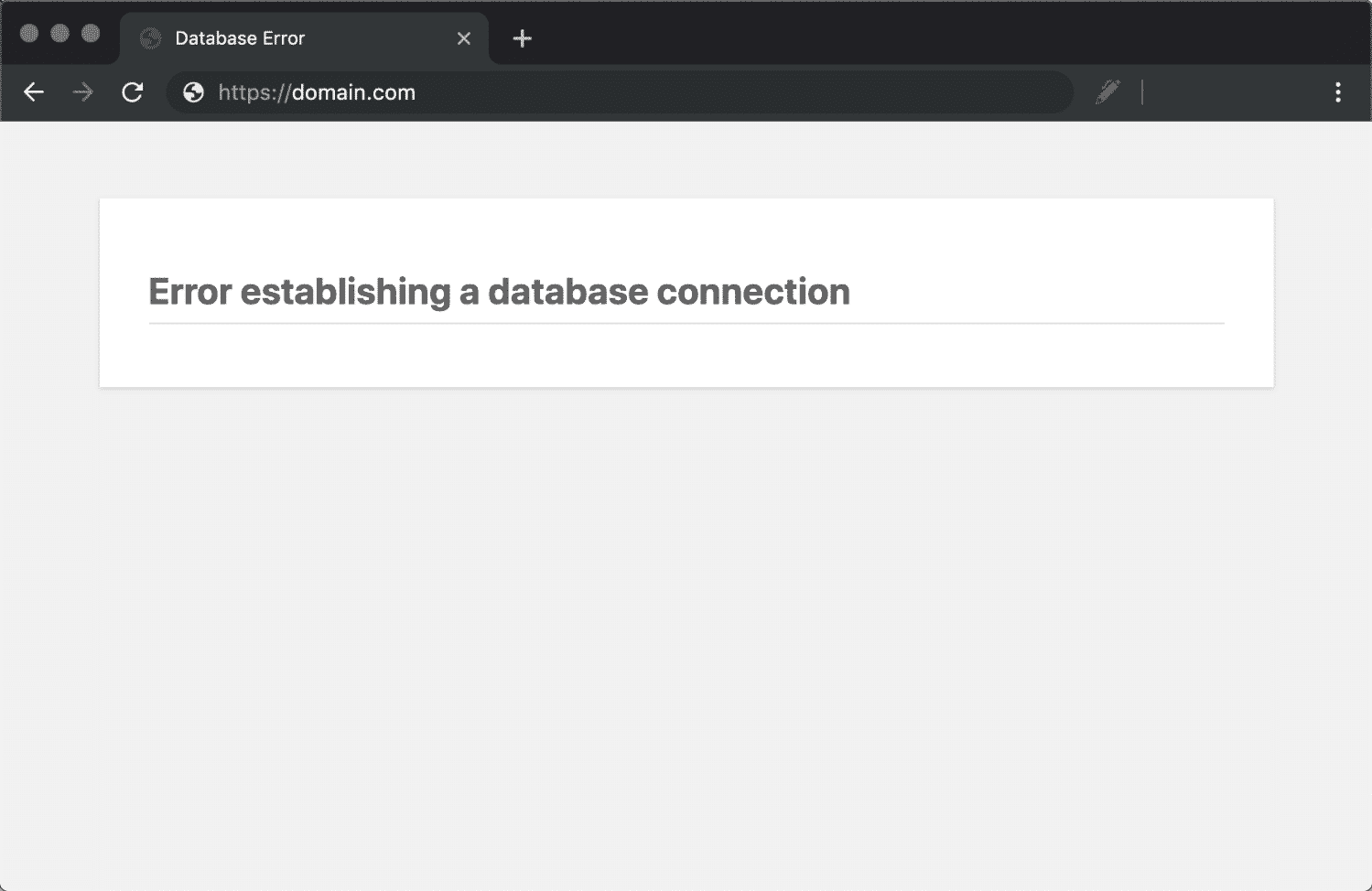
What Does “Error Establishing a Database Connection” Mean?
Every WordPress site relies on a MySQL database to store all its content — posts, pages, comments, settings, plugin configurations, and user data. When you visit a WordPress page, PHP code connects to this database, retrieves the relevant content, and renders it as HTML for your browser.
When WordPress can’t establish that connection, it has literally nothing to display. The result is a blank page with this error message. Importantly, your data is still safe — it’s sitting in your database exactly where you left it. WordPress simply can’t reach it.
This error generates a 500 HTTP status code in your server logs, which means search engines will also see your site as down. If it persists for more than a few hours, it can start affecting your SEO rankings — so fixing it quickly matters.
Common Causes of the Database Connection Error
Before jumping into fixes, understanding why this happens will help you pinpoint the solution faster. In my experience, here are the causes ranked by frequency:
- Incorrect database credentials in wp-config.php — This is the #1 cause, especially after migrating to a new host or changing database passwords.
- Corrupted database tables — Over time, WordPress databases accumulate hundreds of tables from plugins and themes. A failed update or unexpected server shutdown can corrupt them.
- Database server is down or overloaded — On shared hosting, your MySQL server handles databases for many sites. Traffic spikes or hardware issues can take it down.
- Corrupted WordPress core files — A failed FTP transfer, malware, or incomplete update can damage the files WordPress uses to communicate with the database.
- Hit database connection limits — Shared hosting plans often limit concurrent database connections. A traffic spike or poorly-coded plugin making excessive queries can exhaust this limit.
Method 1: Verify Your wp-config.php Database Credentials
This fixes the problem about 60% of the time in my experience. It’s the first thing you should check.
Connect to your server via FTP (FileZilla, WinSCP) or your hosting file manager. Open wp-config.php in your WordPress root directory and look for these four lines:
define( 'DB_NAME', 'your_database_name' );
define( 'DB_USER', 'your_database_username' );
define( 'DB_PASSWORD', 'your_database_password' );
define( 'DB_HOST', 'localhost' );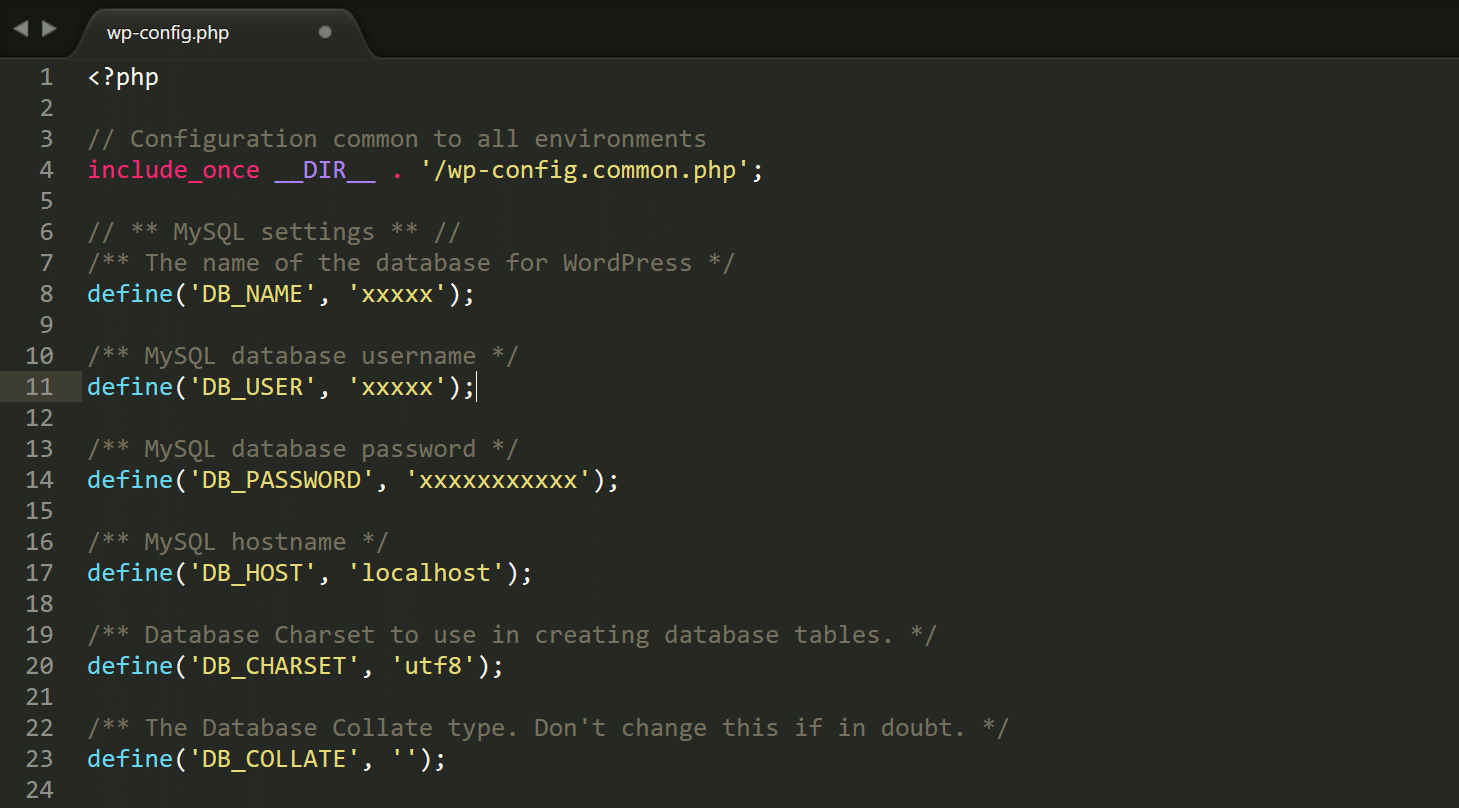
Each value must match exactly what your hosting provider has on file. Here’s how to verify:
In cPanel
- Log into cPanel → MySQL Databases
- Check the database name under “Current Databases”
- Check the username assigned to that database
- If unsure about the password, create a new one and update wp-config.php

In aaPanel / BT Panel
- Go to Databases in the left sidebar
- Find your database — the name, user, and password are all displayed
- Click the password eye icon to reveal and verify it
Common DB_HOST Values
Most hosts use localhost, but not all. Here are some exceptions:
- GoDaddy: Your MySQL hostname (found in your hosting dashboard)
- WP Engine:
localhost - Cloudways:
localhost(but with a custom port) - AWS RDS: Your RDS endpoint URL
Method 2: Test the Database Connection Manually
Not sure if it’s a credentials issue? Create a test file. This is a trick I use constantly — it tells you exactly what’s wrong.
Create a file called testdb.php in your WordPress root directory with this code:
<?php
$link = mysqli_connect('localhost', 'your_db_user', 'your_db_password', 'your_db_name');
if (!$link) {
    die('Connection failed: ' . mysqli_connect_error());
} else {
    echo 'Database connection successful!';
}
mysqli_close($link);
?>
Visit yoursite.com/testdb.php in your browser. If it says “Connection failed,” the error message will tell you exactly what’s wrong — wrong password, unknown database, or access denied.
Important: Delete this file immediately after testing. Leaving it on your server is a security risk.
Method 3: Repair Corrupted Database Tables
If your credentials are correct but you’re still seeing the error, your database tables may be corrupted. WordPress has a built-in repair tool.
Option A: WordPress Built-in Repair
Add this line to your wp-config.php file, just before the “That’s all, stop editing!” comment:
define('WP_ALLOW_REPAIR', true);Then visit: https://yoursite.com/wp-admin/maint/repair.php
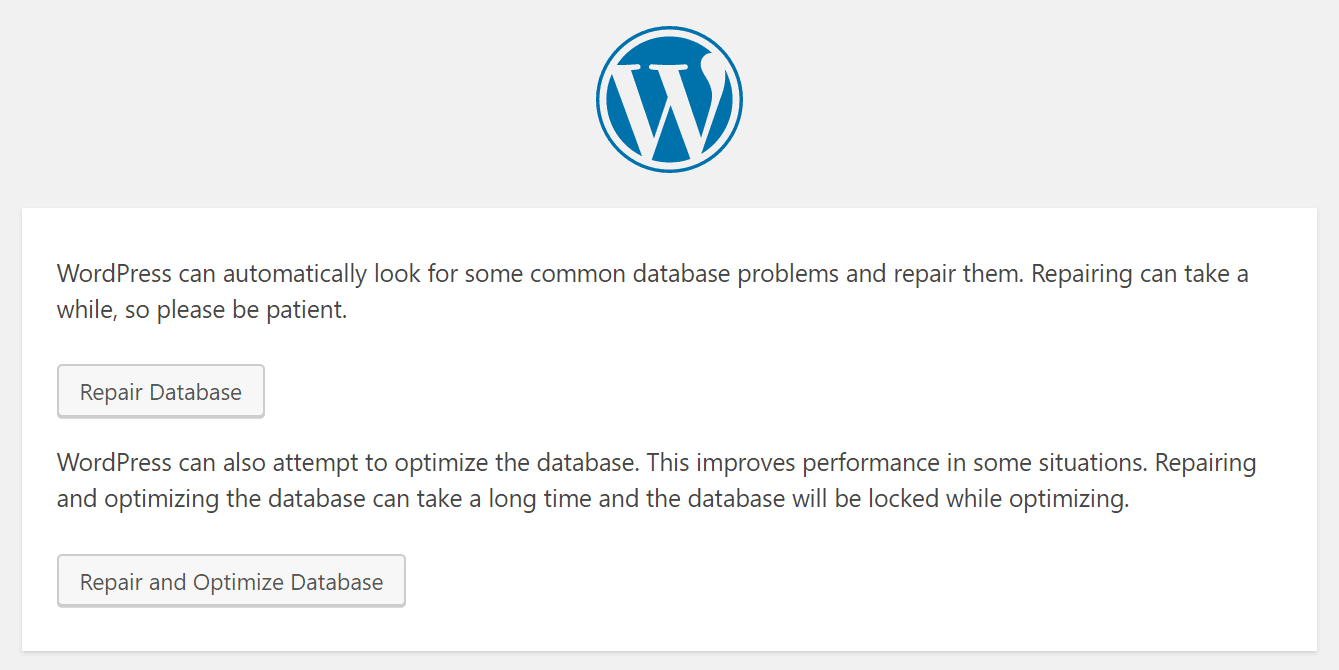
You’ll see two options:
- Repair Database — Fixes corrupted tables
- Repair and Optimize Database — Fixes corruption and reclaims unused space (recommended)
Critical: Remove the WP_ALLOW_REPAIR line from wp-config.php immediately after repair. This page requires no authentication, so leaving it enabled is a security vulnerability.
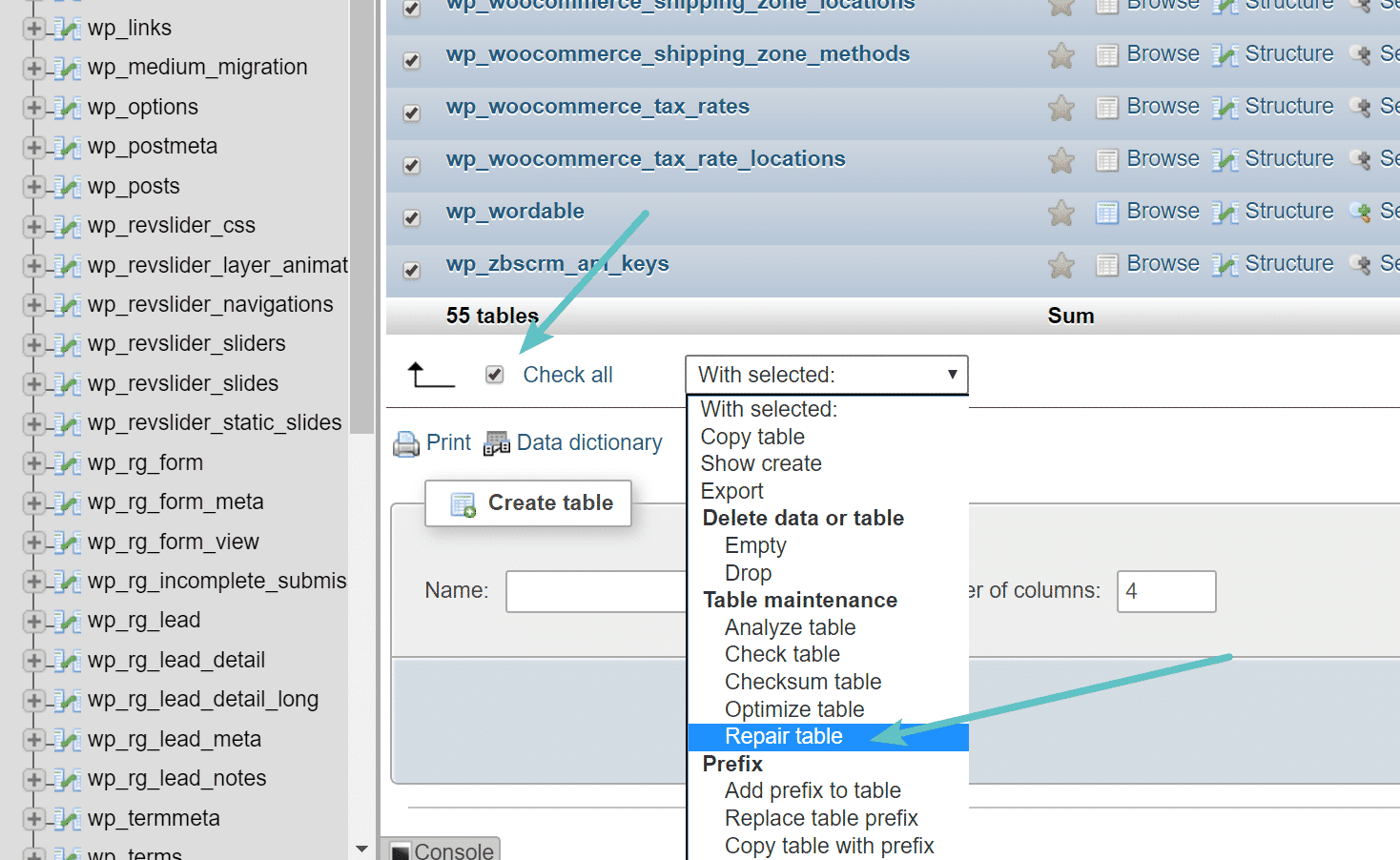
Option B: Repair via phpMyAdmin
- Log into phpMyAdmin from your hosting panel
- Select your WordPress database
- Click “Check All” to select all tables
- From the dropdown menu, choose “Repair table”
Option C: WP-CLI (For Advanced Users)
If you have SSH access, WP-CLI is the fastest option:
wp db repairThis runs the same repair process as the WordPress repair tool but directly from the command line. No need to edit wp-config.php.
Method 4: Check if Your Database Server Is Running
Sometimes the problem isn’t on your end at all — the MySQL server itself is down.
Quick Test
Try logging into phpMyAdmin from your hosting panel. If you can see and browse your database tables, the server is running fine. If phpMyAdmin also shows a connection error, the MySQL service is likely down.
If You Have SSH/Root Access (VPS or Dedicated Server)
# Check MySQL service status
systemctl status mysql
# or for MariaDB
systemctl status mariadb

# If it's stopped, restart it
systemctl restart mysql
Check your MySQL error log for clues about why it stopped:
tail -100 /var/log/mysql/error.logCommon reasons MySQL stops unexpectedly:
- Out of memory (OOM) — MySQL’s InnoDB buffer pool is configured too large for available RAM. The kernel’s OOM killer terminates MySQL to free memory.
- Disk space full — MySQL needs disk space for binary logs, temp tables, and InnoDB transaction logs.
- Too many connections — Default
max_connections(usually 151) exceeded during traffic spikes.
Method 5: Replace Corrupted WordPress Core Files
If database credentials check out and the database server is running, your WordPress core files may be corrupted.
- Download a fresh copy of WordPress from wordpress.org
- Extract the zip file
- Delete the
wp-contentfolder from the extracted files (you don’t want to overwrite your themes and plugins) - Delete the
wp-config.phpfile from the extracted files (you don’t want to overwrite your database settings) - Upload the remaining files to your server via FTP, overwriting existing files
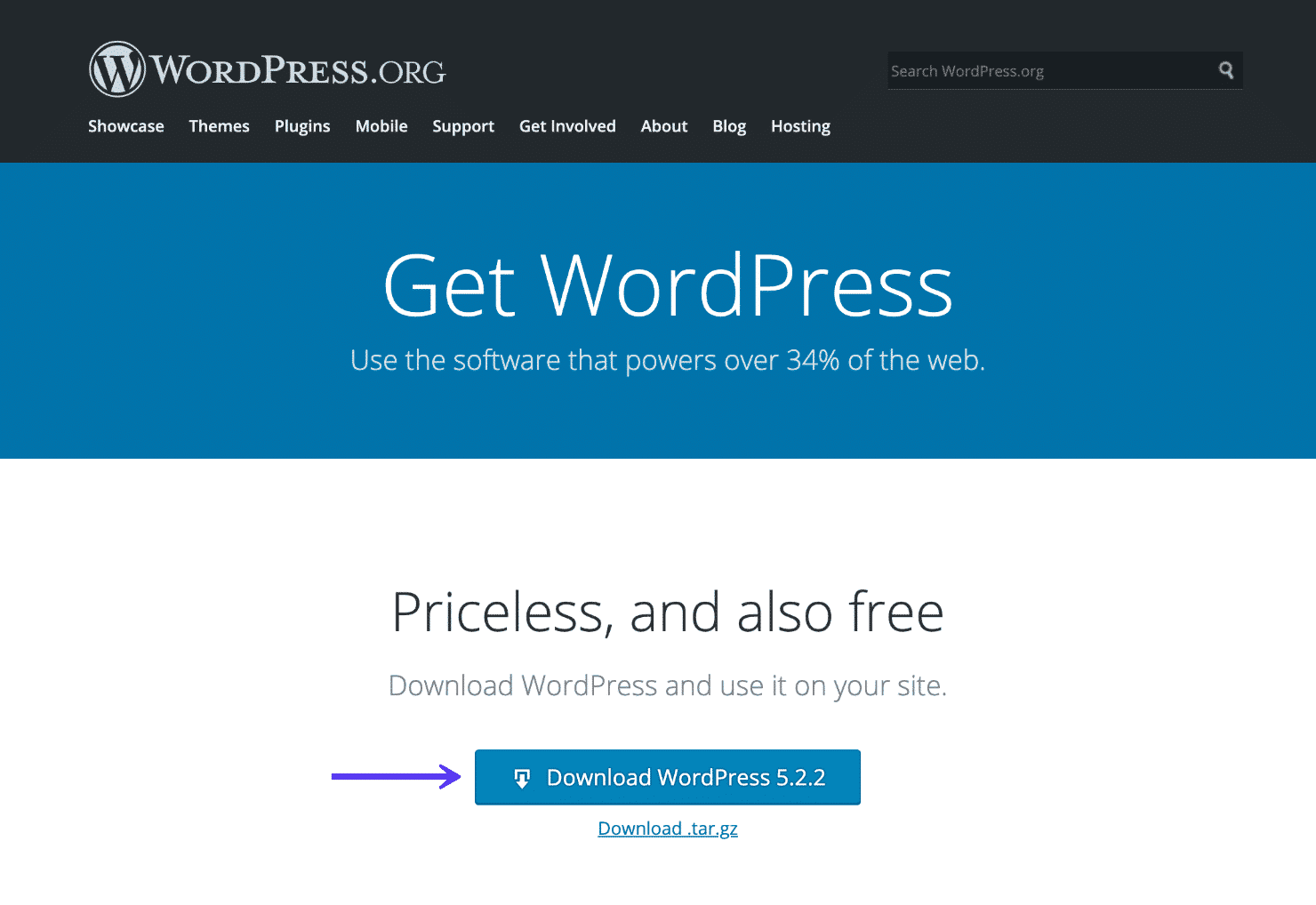
This replaces all core WordPress files — the connection logic, admin interface, and internal API — without touching your content, plugins, or themes.
Method 6: Restore From a Backup
If nothing above works, restoring from a backup is your safest bet. This replaces your potentially corrupted files and database with a known-good version.
Where to find your backups depends on your setup:
- Hosting provider: Most managed hosts (Kinsta, SiteGround, WP Engine) offer automatic daily backups in the dashboard
- Backup plugins: UpdraftPlus, BlogVault, and BackupBuddy store backups in cloud storage (Google Drive, Dropbox, S3)
- Server-level: If you manage your own VPS, check for automated backup schedules or snapshots
Always restore the database backup first, then the files. If you only restore files without the database, you might end up with a version mismatch.
Method 7: Prevent This Error From Happening Again
After you’ve fixed the immediate issue, take these steps to prevent it from recurring:
1. Set Up Automated Backups
Use a plugin like UpdraftPlus (free) or BlogVault to create daily automated backups that include both files and database. Store them off-server in cloud storage.
2. Monitor Your Database Server
If you’re on a VPS, set up uptime monitoring (UptimeRobot, Hetrixtools) that alerts you the moment MySQL goes down. This way you can restart it before visitors notice.
3. Optimize Your Database Monthly
Install WP-Optimize or use phpMyAdmin to clean up post revisions, spam comments, transients, and orphaned metadata. A lean database is less likely to corrupt.
4. Use a Staging Environment
Never update plugins, themes, or WordPress core directly on your live site. Use a staging environment to test updates first. Most managed hosts offer one-click staging.
5. Upgrade Your Hosting When Needed
If you’re on shared hosting and seeing this error frequently, your site has outgrown that environment. A VPS or managed WordPress host with dedicated database resources will be significantly more stable.
Quick Diagnosis Checklist
Use this checklist to quickly narrow down the cause:
| Symptom | Likely Cause | Fix |
|---|---|---|
| Error appeared after migration | Wrong credentials in wp-config.php | Method 1 |
| Error appeared after plugin/theme update | Corrupted database | Method 3 |
| Error appears randomly, then fixes itself | MySQL server overloaded or OOM | Method 4 |
| Error appeared after host maintenance | Database server down | Method 4 |
| Error appeared after file edits via FTP | Corrupted core files | Method 5 |
| phpMyAdmin also shows connection error | MySQL service stopped | Restart MySQL |
| testdb.php says “Access denied” | Wrong user/password | Method 1 |
Wrapping Up
The “Error Establishing a Database Connection” is one of the most common — and most alarming — WordPress errors. But as you’ve seen, it’s almost always caused by one of a handful of well-understood issues, and every one of them has a straightforward fix.
Start with Method 1 (checking wp-config.php credentials) — it solves the problem more than half the time. If that doesn’t work, move through the methods in order. By Method 4, you’ll have identified whether the issue is on your end or your hosting provider’s.
The most important takeaway? Set up automated backups before this happens. A daily backup means you’re never more than 24 hours of work away from a fully functional site, no matter what goes wrong.
If you found this guide helpful, check out my other WordPress troubleshooting guides. And if you’re still stuck after trying everything above, drop a comment below — I’ll help you diagnose the issue.