
How to Fix Error Establishing a Database Connection in WordPress (7 Proven Methods)
March 19, 2026
How to Fix WordPress Posts Returning 404 Error: The Definitive Troubleshooting Guide
March 21, 2026
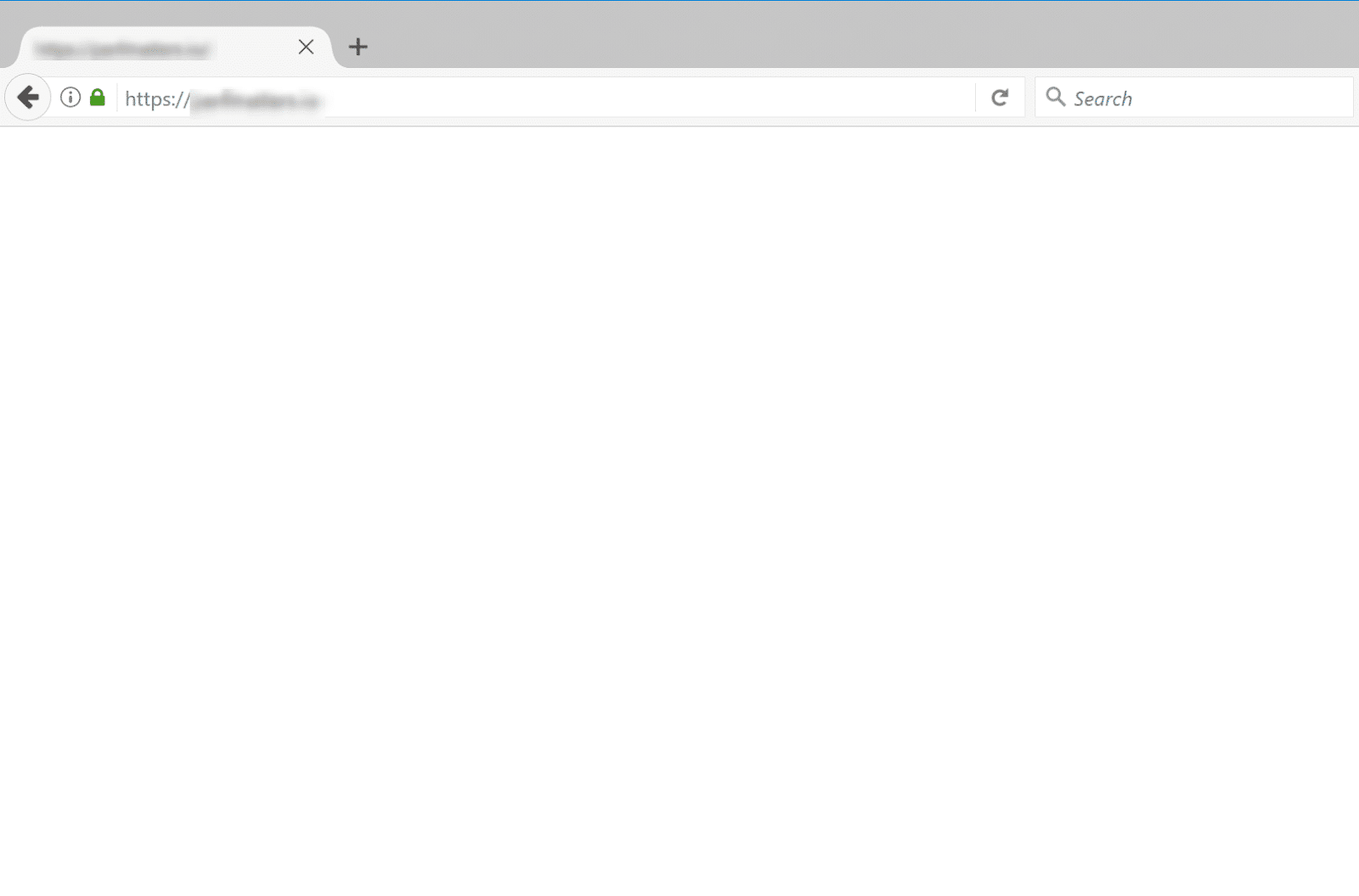
You open your browser, type in your WordPress site URL, and — nothing. Just a blank white page staring back at you. No error message. No clue. Just white.
I’ve been fixing WordPress sites for over 15 years, and the White Screen of Death (WSOD) is still one of the most panic-inducing errors I see clients face. The good news? It’s almost always fixable in under 30 minutes if you follow the right steps.
In this guide, I’ll walk you through exactly what causes the WSOD and 8 proven methods to fix it — in the order I actually use them myself.
What Is the WordPress White Screen of Death?
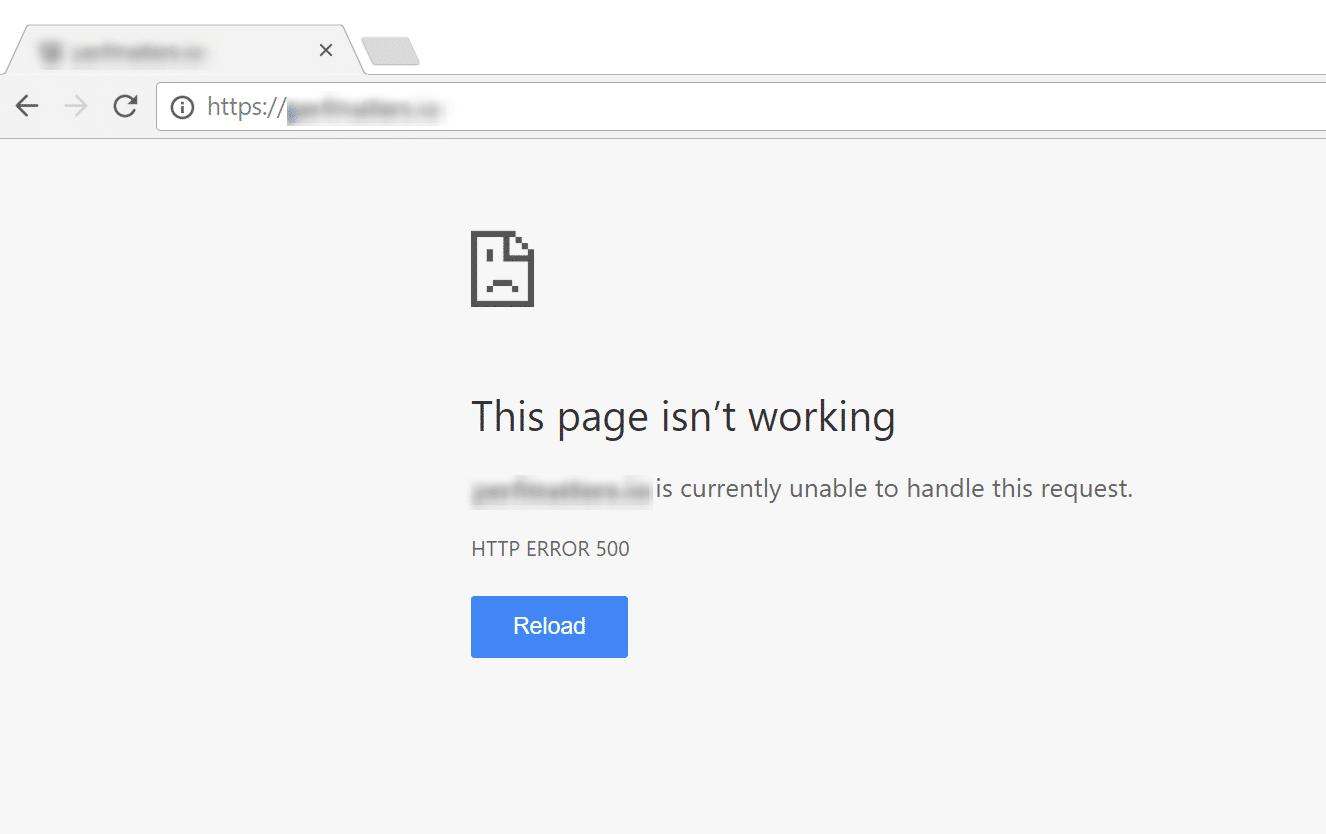
The White Screen of Death is when your WordPress site displays a completely blank white page instead of your content. Unlike a 500 error or database connection error, the WSOD gives you zero information — which makes it especially frustrating to diagnose.
The most common causes I’ve seen across hundreds of sites:
- PHP memory exhaustion — a script ran out of memory and was killed mid-execution
- A buggy plugin or theme — bad code causing a fatal PHP error
- A failed WordPress auto-update — leaving a
.maintenancefile behind - PHP syntax errors — usually after manually editing a file
- Incompatible PHP version — plugin built for PHP 7.x breaks on PHP 8.x
The WSOD can affect just your frontend, just your admin area, or both. Knowing which one helps narrow down the cause immediately.
Before You Start Troubleshooting
Two quick checks before diving in:
- Try your WP admin URL: Go to
yoursite.com/wp-admin. If admin loads but frontend is blank → likely a theme issue. If both are blank → plugin or memory problem. - Check your email: Since WordPress 5.2, the fatal error protection system sends a recovery mode link to your admin email. Check your inbox before anything else.
8 Proven Fixes for the WordPress White Screen of Death
1. Enable WordPress Debug Mode
This is always my first step. Debug mode transforms that blank white screen into an actual error message telling you exactly what went wrong and which file caused it.
Connect to your site via FTP or File Manager and open wp-config.php. Find this line:
define( 'WP_DEBUG', false );Replace it with:
define( 'WP_DEBUG', true );
define( 'WP_DEBUG_LOG', true );
define( 'WP_DEBUG_DISPLAY', true );
Reload your site — you’ll now see the actual PHP error instead of a blank page. It will tell you the exact file, line number, and error type. Once the issue is fixed, set WP_DEBUG back to false. You never want debug mode active on a live site.
2. Increase the PHP Memory Limit
PHP memory exhaustion is the single most common cause of WSOD I encounter. WordPress defaults to just 40MB of memory — nowhere near enough for a site running 10-20 plugins.
In wp-config.php, add this before the “That’s all, stop editing!” comment:
define( 'WP_MEMORY_LIMIT', '256M' );If the host doesn’t allow this via wp-config.php, try adding to .htaccess:
php_value memory_limit 256MMost good hosting providers set this to 256MB or higher by default. If yours doesn’t, that’s a sign you’re on underpowered hosting.
3. Disable All Plugins
If debug mode points to a plugin — or you can’t access wp-admin at all — the fastest way to isolate the problem is to disable all plugins at once via FTP.
Connect via FTP/SFTP, navigate to wp-content/, and rename the plugins folder to plugins_disabled. WordPress automatically deactivates everything.
If your site loads, rename the folder back to plugins, then go to wp-admin and reactivate plugins one at a time, reloading between each. When the site breaks again, you’ve found your culprit.
Start with the most recently updated or installed plugin — that’s where 80% of these issues originate.
4. Switch to a Default WordPress Theme
Themes cause WSOD just as often as plugins. Via FTP, go to wp-content/themes/ and rename your active theme folder (e.g., my-theme → my-theme-disabled).
WordPress falls back to the default theme (Twenty Twenty-Four). If your site loads, the active theme is the problem — contact the theme developer or switch to a different theme.
5. Clear All Caches
A stale or corrupt cache can serve a broken page even after you’ve fixed the underlying issue. Clear everything:
- Browser cache: Ctrl+Shift+R (Windows) or Cmd+Shift+R (Mac)
- WordPress caching plugin (LiteSpeed Cache, WP Rocket, W3 Total Cache): clear all from plugin settings
- Object cache: Delete
wp-content/object-cache.phpif it exists - CDN: Purge from your CDN dashboard (Cloudflare, BunnyCDN, etc.)
This step takes two minutes and is worth doing early in the troubleshooting process.
6. Fix a Failed Auto-Update
The WSOD often appears immediately after a WordPress auto-update that got interrupted. When this happens, WordPress leaves a hidden .maintenance file in your root directory — this intentionally prevents anyone from accessing the site during what it thinks is an ongoing update.
Connect via FTP, enable “Show hidden files” in your FTP client, and look for .maintenance in the root. Delete it. In 9 out of 10 cases, the site comes back immediately.
7. Fix File Permissions
Incorrect file permissions can cause PHP to silently fail, producing a blank white screen with no error. The correct permissions for WordPress are:
- Files: 644
- Directories: 755
- wp-config.php: 600 (more restrictive for security)
Fix via SSH with these commands (replace the path with your actual WordPress installation path):
find /var/www/yoursite/ -type f -exec chmod 644 {} ;
find /var/www/yoursite/ -type d -exec chmod 755 {} ;
chmod 600 /var/www/yoursite/wp-config.php
8. Restore from Backup
If you’ve worked through all 7 steps above and still can’t identify the cause, it’s time to restore from a backup. This isn’t admitting defeat — it’s the smart move when the site needs to be back online now.
With UpdraftPlus: go to Settings → UpdraftPlus Backups → Existing Backups and click Restore on the last known-good backup. With managed hosting (Kinsta, SiteGround, Cloudways), use their control panel’s one-click restore feature.
This is exactly why automated daily backups are non-negotiable for any live WordPress site.
How to Prevent the WordPress WSOD in the Future
After fixing hundreds of broken WordPress sites, here’s what I implement on every site I manage:
- Always test updates on staging first. Never update plugins, themes, or WordPress core directly on production. Most quality hosting providers offer free staging environments.
- Set up automated daily backups with offsite storage (Google Drive, Amazon S3, Dropbox). Your backup is your safety net — make sure it exists before you need it.
- Set PHP memory to 256MB or higher. One line in wp-config.php prevents the most common cause of WSOD.
- Install an uptime monitor. UptimeRobot is free and will alert you within 5 minutes if your site goes down.
- Use a child theme for all theme customizations. Direct edits to parent theme files are lost on every theme update — and can break the site.
Still Seeing the White Screen? Let Me Help
Work through these 8 steps methodically — debug mode first, then memory limit, then plugins, then theme. You’ll find the cause in almost every case.
If you’ve tried everything and your site is still showing the WSOD, contact me here. I specialize in WordPress emergency recovery and have brought hundreds of broken sites back online, often within a few hours. Let’s get your site running again.